


Setup Guide v1.0, May 2026. This is the public, always-up-to-date version of the Newsletter Engine Setup Guide. Buyers receive a copy of this guide inside their Notion workspace template when they purchase. Prospects considering Newsletter Engine: this page shows you exactly what you would receive and how the system works.
Welcome
Thank you for buying Newsletter Engine. You now own a complete AI newsletter automation stack: this guide, a Notion workspace, a Make.com scenario blueprint, and the Voice DNA prompt that ties them together.
In about 30 minutes (allow 45 if you are new to Make or Anthropic) you will have a working pipeline that turns one issue topic plus 1 to 3 source pieces into a publishable newsletter draft in 15 seconds. Voice-matched. Subject lines pre-written. Body broken into clean paragraph blocks ready to paste into your email tool.
A reframe before we start: this system is infrastructure plus judgment. Make.com is infrastructure. It moves data and triggers events. Claude is judgment. It produces voice-true prose. Your job is to keep both lanes clean. You pick topics and sources; the system handles everything between.
Read this guide front to back once before installing. Each section ends in a verification step so you can confirm a layer is working before moving to the next.
Before you start, you will need: a Notion account (free tier works), a Make.com account (free tier works for weekly cadence), an Anthropic account with billing enabled and ~$5 in API credits (covers about 90 newsletters), your usual email tool (MailerLite, Beehiiv, ConvertKit, Mailchimp, Substack, whatever), and about 30 minutes uninterrupted. If any of those is missing, set it up first. Anthropic in particular requires a payment method or prepaid credit before it will let you create an API key, and that account-creation flow can take 5 to 10 minutes by itself.
1. What this system does
Newsletter Engine is a four-layer system. Each layer has one job.
Layer 1: Voice DNA. One Notion page with a code block at the top. The code block is the active system prompt Claude reads every time the pipeline runs. You edit the code block to change how your newsletters sound. The Make scenario does not need to know you changed anything.
Layer 2: Source library. A Notion database. One row per source. Paste old blog posts, podcast transcripts, course modules, prior newsletters, whatever you might reference in future issues. The library grows whether you are publishing that week or not.
Layer 3: Issue queue. A second Notion database. One row per upcoming newsletter. Type a topic, link 1 to 3 sources, set Status to “Ready to Draft.” That is the entire human input per issue.
Layer 4: The pipeline. A Make.com scenario watching the Issue queue. When a row flips to “Ready to Draft,” eight modules fire in sequence and a fully structured draft lands in the Drafts database 15 seconds later: 3 ranked subject lines, preview text, body, P.S., and CTA, plus Word Count and Em-dash Count metrics for quality control.
Running cost: about 5.6 cents per newsletter. Sonnet 4.6, roughly 3,500 input tokens, 1,200 output. A weekly newsletter burns about $2.91 of Anthropic credits per year. Make.com’s free tier handles weekly cadence with credits to spare.
One-time install, not a subscription. You install Newsletter Engine once. There are no recurring fees to OptimyzeHQ. You pay only your direct Anthropic API usage (cents per issue) and your existing Make.com plan.
What is not included. Newsletter Engine drafts your newsletter. It does not send the email. It does not host your subscriber list. It does not pick your topics. It does not run analytics. You still need an email tool to deliver the newsletter, and you still bring the judgment of which topic matters this week.
2. Set up the Notion workspace
The workspace you duplicated includes 3 databases (Newsletter Sources, Newsletter Inputs, Newsletter Drafts), a Voice DNA System Prompt sub-page, and this Setup Guide.
2a. Confirm the workspace duplicated cleanly. Open the Notion sidebar. You should see “Newsletter Engine” at the top level. Click into it. Below the intro text, you should see three databases and one sub-page with a microphone icon (🎙️ Voice DNA System Prompt).
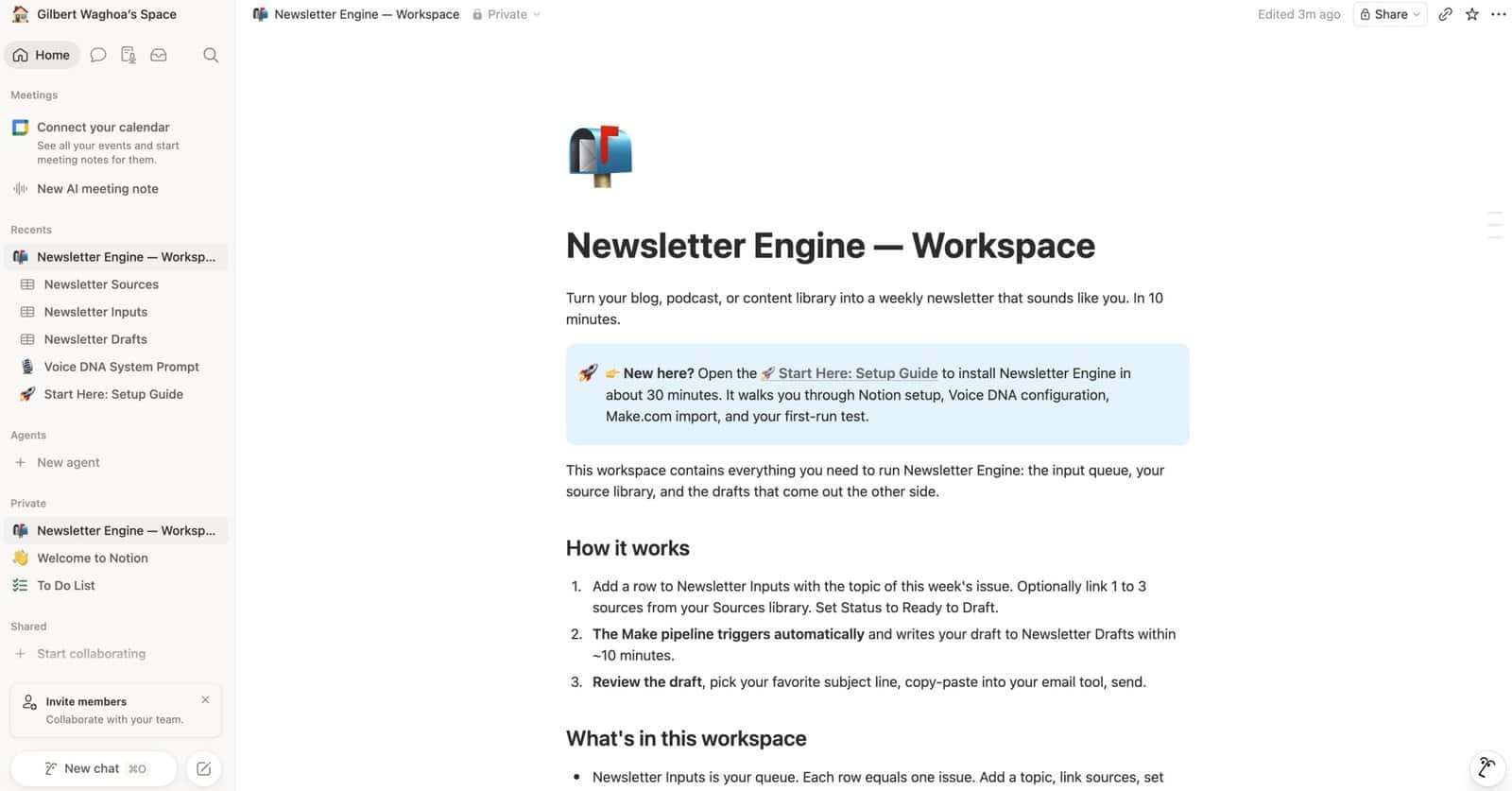
2b. Verify the relations work. Open Newsletter Inputs. Click “+ New” to create a test row. Click into the Sources column. A picker pops up. You should see “No matches” or a prompt to create a new source (because the library is empty). That is the correct state. Delete the test row after confirming.
2c. Populate Sources with your back-catalog. Before running your first issue, you need at least 1 source row with content. For each source:
- Open Newsletter Sources, click “+ New”
- Title the row (e.g., “Pillar 8: AI newsletter automation system”)
- Paste the full content into the Content rich-text field. Aim for 1,000 to 5,000 words per source. Shorter than 500 words and the AI has too little to work with; longer than 10,000 and you pay for tokens you do not need.
- Set Type (Blog post / Podcast transcript / Newsletter / Other)
- Save by clicking out of the row
A productive first session: paste in 5 to 10 of your strongest pieces. That gives you enough material to test the pipeline immediately and a real library for the first month of issues.
Notion Team and Enterprise users: some workspace administrators block external integrations by default. If you cannot complete the connection step in Section 4, ask your admin to approve “Notion connections” for your account.
3. Configure Voice DNA
This is the slowest setup step (10 to 15 minutes of thinking time) and also the highest-impact one. The quality of every newsletter you produce depends on the quality of this prompt.
The Voice DNA page is structured in four parts:
- Active prompt (the code block at the top). This is what Claude actually reads on every run.
- Section A: Questionnaire. 12 questions you answer about your voice.
- Section B: System Prompt Template. The prompt skeleton with
{slot}placeholders that map to your questionnaire answers. - Section C: Worked example. OptimyzeHQ’s own filled-in answers, as a reference for what “specific” looks like.
The Voice DNA page ships with OptimyzeHQ’s own voice profile already filled in. Your first newsletter will read like Gilles wrote it. That is intentional: it proves the pipeline works end to end before you customize. Then you replace the contents of the code block with your own voice and run again.
3a. Open the Voice DNA page. In your duplicated workspace, click into “Voice DNA System Prompt” (icon 🎙️). The active prompt is the first code block at the top of the page.
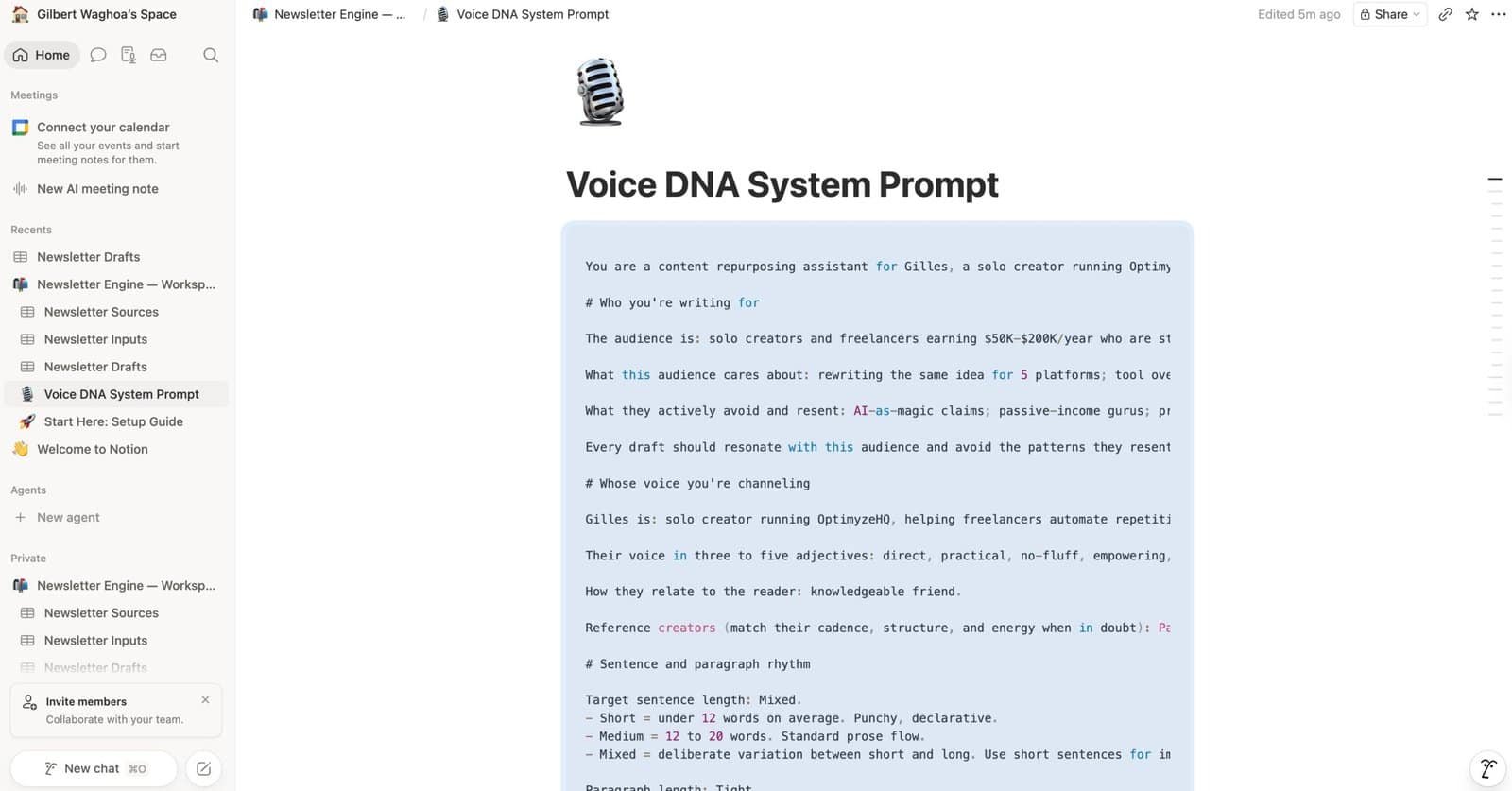
3b. Read the OptimyzeHQ example first. Scroll to Section C (“Example: OptimyzeHQ’s filled-in Voice DNA”). The answers there show what “specific” means for each question. You will write better answers if you read these first.
3c. Fill in the Section A questionnaire. Twelve questions plus two bonus prompts cover your name, role, audience, audience pains and avoidances, tone, reader relationship, sentence and paragraph rhythm, vocabulary (including kept words and forbidden words), personal touches (first-person preference, anecdotes, humor, emoji use), opening and closing patterns, and reference creators.
Take your time. Vague answers produce vague drafts. The kept_words and forbidden_words lists are the highest-impact fields. Sweat those.
3d. Compile your answers into the system prompt. Copy Section B (the template code block). For every {slot}, paste in your corresponding answer from Section A. The result is your complete, personalized system prompt.
3e. Replace the active prompt. Scroll back to the top of the Voice DNA page. Click into the first code block. Select all (Cmd+A or Ctrl+A), delete the OptimyzeHQ default, paste in your compiled prompt. Notion auto-saves.
Critical: do NOT edit Section B (the template). Section B is the skeleton, not the active prompt. The pipeline only reads the FIRST code block on the page. If you accidentally edit Section B, your pipeline will keep producing drafts in the OptimyzeHQ voice. To verify you edited the right block, scroll to the top of the page: the first code block should now contain your voice profile.
3f. Verify the page saved. Refresh the page (Cmd+R or Ctrl+R). The first code block at the top should still show your edited content.
You do not need to touch Make.com after editing Voice DNA. The pipeline reads from this page on every run. Save the page, run a pillar, see the new voice in the next draft.
4. Import the Make scenario
The Make scenario blueprint is delivered as a downloadable file inside your Notion workspace template (Section 4 of the in-product Setup Guide). When you purchase Newsletter Engine, you duplicate the workspace and the blueprint file is right there, ready to download.
4a. Create a Make.com account (skip if you have one). Go to make.com, sign up, choose the Free plan. Free tier includes 1,000 credits per month, which covers about 125 weekly newsletter runs.
4b. Get an Anthropic API key. Go to console.anthropic.com (if that URL has moved, look for “API Keys” in your Anthropic console settings). Anthropic requires a payment method or prepaid credit before you can create a key. Add $5 of credits as a starter; that covers about 90 newsletters. Then go to API Keys, click “Create Key,” name it “Make.com Newsletter Engine,” and copy the key. Anthropic only shows the key once. Paste it somewhere safe (your password manager) before leaving the page.
4c. Get a Notion integration token. Go to notion.so/profile/integrations, click “New integration,” name it “Newsletter Engine,” set Type to Internal, choose your workspace, submit. Copy the Internal Integration Secret.
Then grant the integration access to your duplicated workspace: open the Newsletter Engine page in Notion, click “…” top right, click “Connections,” click “+ Add connection,” search for “Newsletter Engine” (the integration you created), click to add. This propagates access to all 3 databases and the Voice DNA sub-page.
4d. Import the Make blueprint. Download the blueprint file from your Notion workspace (it sits at the top of Section 4 in the in-product Setup Guide). In Make.com, click “+ Create a new scenario” then click the three-dot menu (top right inside the empty editor) and choose “Import Blueprint.” Pick the file you downloaded. The 8-module scenario appears on the canvas.
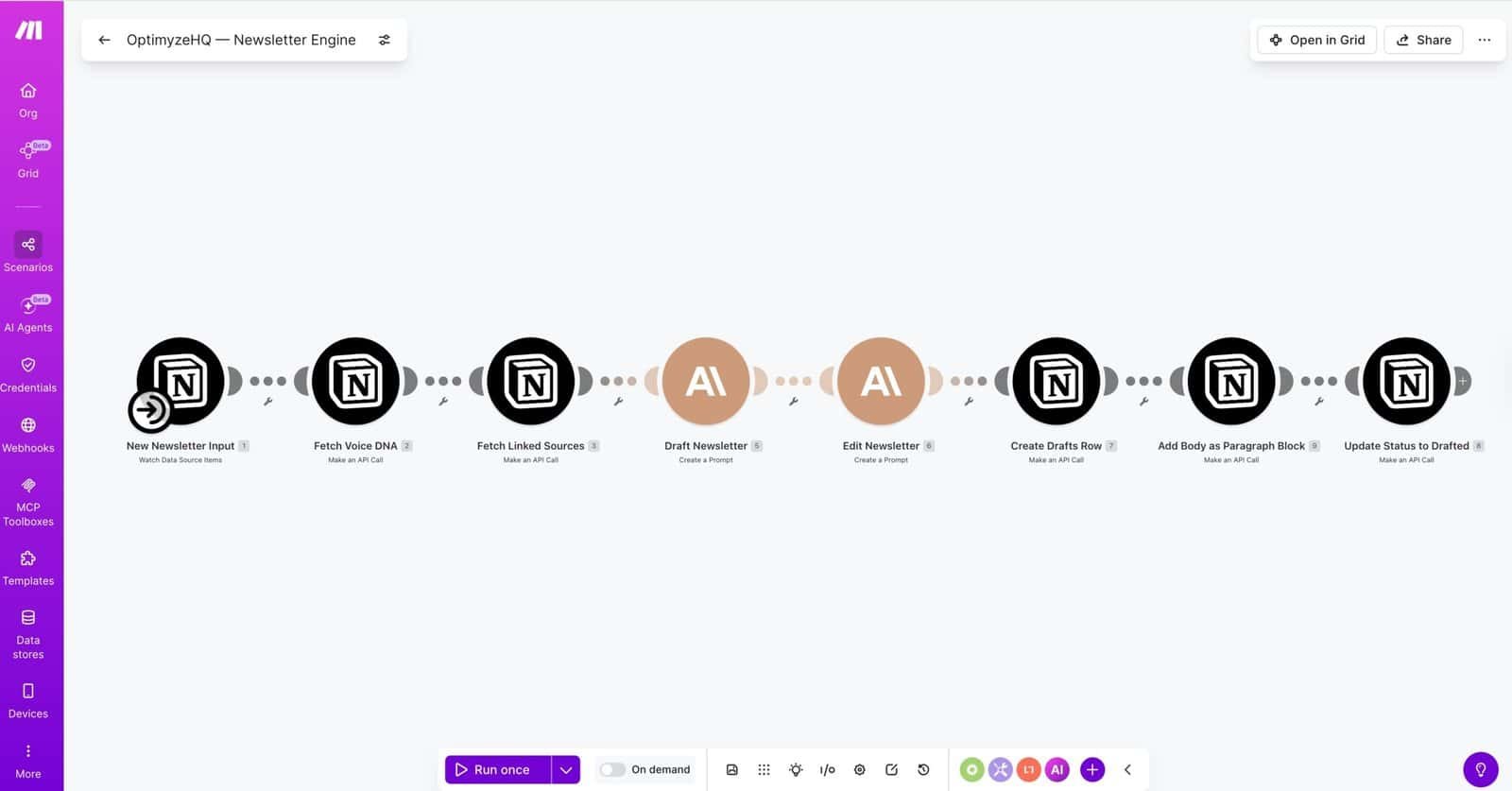
4e. Wire the Anthropic connection. Click Module 4 (the Draft step). Under Connection, click “Add” then choose Anthropic Claude then paste your API key from step 4b then click Save. Repeat for Module 5 (the Editor step). Both Claude modules now use the same connection.
4f. Wire the Notion connection. Click Module 1 (the trigger, Watch Database Items). Under Connection, click “Add” then choose Notion then paste your integration token from step 4c then click Save.
After wiring the Notion connection on Module 1, repeat the connection step for every Notion module (Modules 2, 3, 6, 7, 8). Same connection for all of them. Then replace the 4 placeholder strings in the blueprint with your own Notion IDs (the in-product guide walks through each ID swap: Inputs data source, Voice DNA page, Sources database, Drafts database).
4g. Set the trigger to pick up existing rows. While you have Module 1 open, scroll down to the “Choose where to start” option. Set it to “All”. This lets the trigger pick up Inputs rows that exist before you activate the scenario, so your first-run test works without creating a brand new row after activation.
4h. Critical: re-save every module. Make.com leaves modules in an “unsaved” state even after wiring. Open EVERY module one at a time (the configuration panel opens), then click “Save” at the bottom of the panel. Do this for all 8 modules. Including the trigger. Including modules that look already-configured. Skipping this step is the #1 reason first-run tests fail silently.
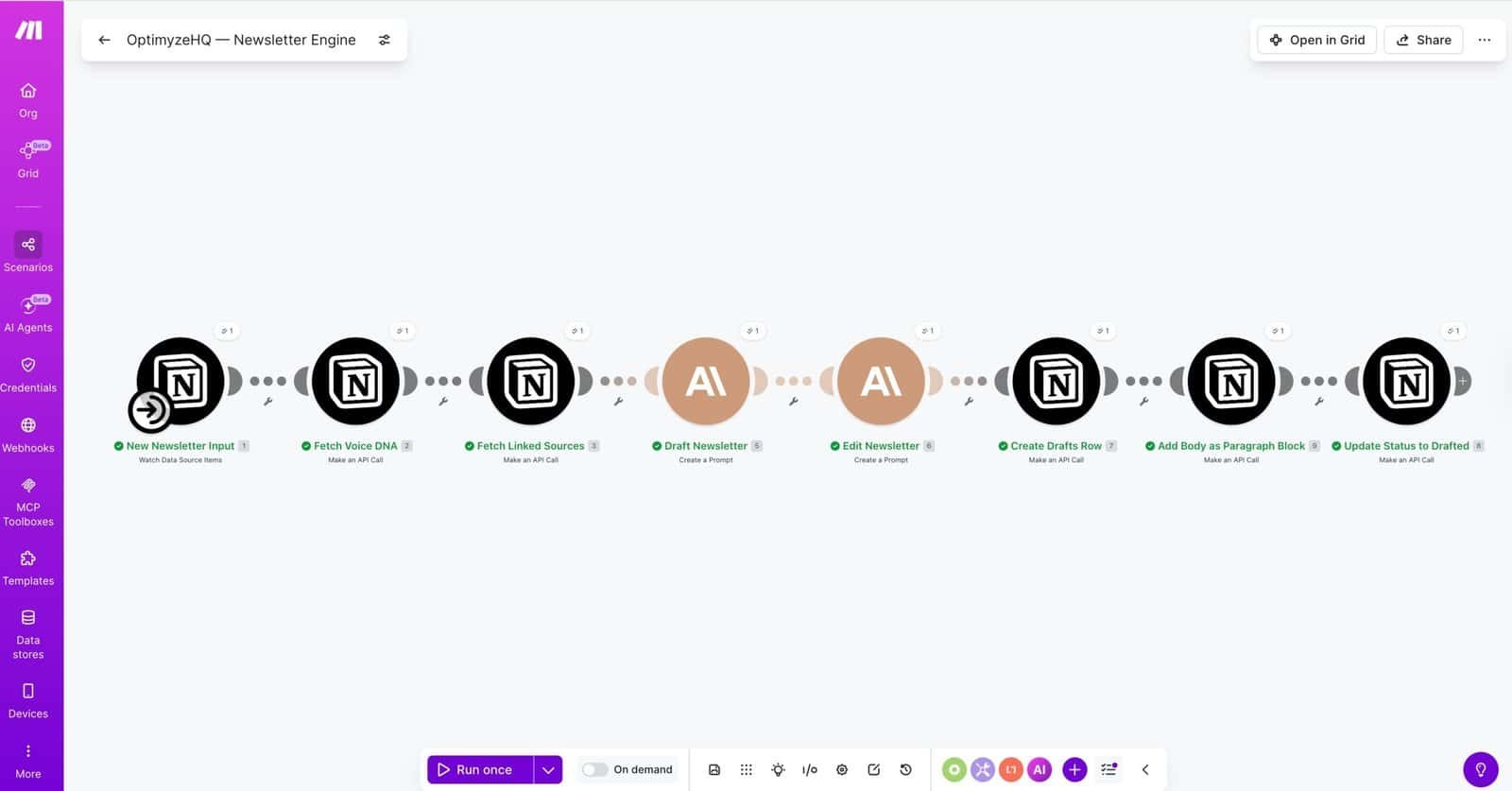
4i. Activate the scenario. Toggle the “Scenario active” switch at the bottom of the canvas to ON. The trigger now polls your Inputs database every 15 minutes for new rows (15-min minimum on free tier; 1-min minimum on paid).
About BYOK (Bring Your Own Key). Newsletter Engine uses your own Anthropic API key, not a key OptimyzeHQ owns. Why: you stay in full control of the spend cap, rate limit tier, and data path. You see every cent of your usage in your own Anthropic console. We never see your prompts, your drafts, or your subscriber data. This is also why there is no recurring fee to us.
5. First-run test
5a. Confirm you have at least 1 source row. If you skipped that part of Section 2, do it now. The pipeline needs at least one Source linked on the Issue row, with content in the Content field, to produce a draft.
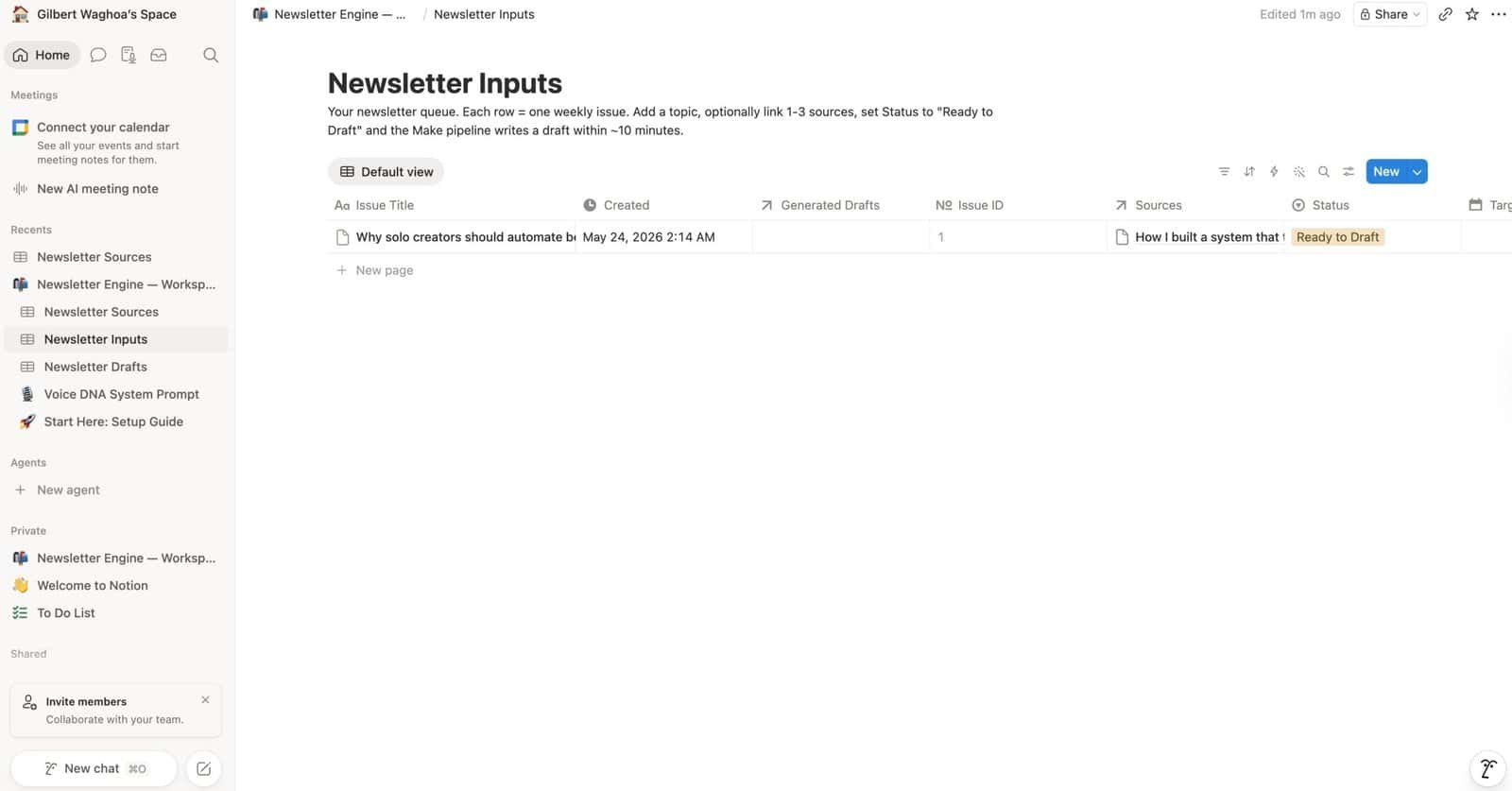
5b. Create your first Issue row. Open Newsletter Inputs, click “+ New”:
- Title: the topic of your test newsletter (e.g., “Why solo creators should automate before they hire”)
- Sources: click the relation field, pick 1 to 3 rows from your Sources library
- Status: click into the Status dropdown, select “Ready to Draft”
5c. Watch the pipeline run. Open Make.com in another tab. Go to Scenarios then Newsletter Engine then click the running scenario to open its canvas. Within 15 minutes (Make polls every 15 min on free tier), the trigger fires and the modules execute one by one. Each module shows a green checkmark as it completes. Total runtime: about 15 seconds once the trigger fires.
If you do not want to wait the polling window, click “Run once” at the bottom of the Make canvas. The trigger fires immediately and processes the Inputs row.
5d. Check the Drafts row. Back in Notion, open Newsletter Drafts. A new row appeared, titled with your test topic plus ” – Draft” suffix. Open it.
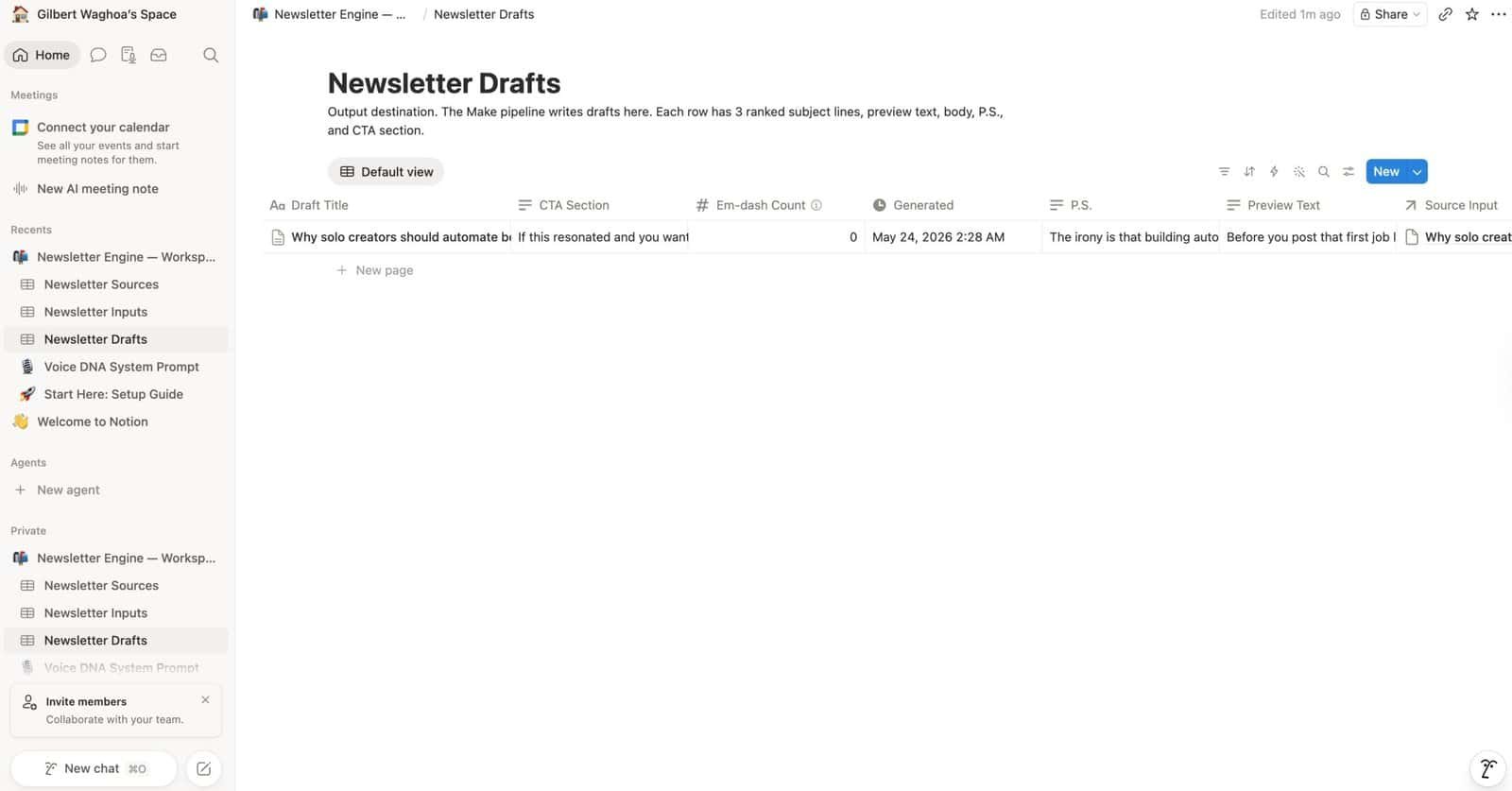
You should see 3 Subject Line variants (Curiosity, Benefit, Specific), Preview Text (under 120 chars), Body (broken into proper paragraph blocks on the page), P.S. (1 to 3 sentences), CTA Section, Word Count (typically 500 to 900), and Em-dash Count (should be 0).
If Em-dash Count is greater than 0, the em-dash strip pass missed something. Tighten your Voice DNA forbidden_words list to be explicit about em-dashes, re-save Voice DNA, and run again.
5e. Confirm Status flipped. Go back to Newsletter Inputs. Your test row’s Status should now read “Drafted” (Module 8 of the pipeline updates this automatically). If it still says “Ready to Draft,” check the Make execution log for errors.
If all five checks pass, your pipeline is live. Replace the OptimyzeHQ-voice Voice DNA prompt with your own (Section 3e) and run again. The second draft should sound like you.
6. Your weekly workflow
The 10-minute pattern, once everything is wired:
- Minute 1: Open Newsletter Inputs. Click “+ New.” Type the topic. Click into Sources, pick 1 to 3 rows. Set Status to “Ready to Draft.”
- Seconds 0 to 15 (auto): Make polls, the pipeline runs, the draft lands in Drafts.
- Minutes 3 to 7: Open the Drafts row. Read the body. Pick which of the 3 subject lines you like. Copy the preview text. Copy the body.
- Minutes 7 to 10: Paste into your email tool. Schedule or send.
The Sources library grows whether you publish that week or not. Every time you publish a new blog post or record a podcast episode, drop the content into Newsletter Sources. After three months, you have a real archive that any future issue can pull from in seconds.
Iterating Voice DNA. First drafts are usually “fine but not quite me.” That is normal. The two highest-impact tuning levers:
- Kept words. Add 3 to 5 more phrases you actually use that came across as missing. “The loop,” “ship it,” “stack,” whatever sounds like you on a given platform.
- Forbidden words. Add 3 to 5 words you caught in the draft that did not sound like you. Most common offenders are the words on the universal anti-AI-slop list already baked into the template.
Edit those two lists in the active prompt code block at the top of your Voice DNA page, save, run a real issue, and check the difference. Iterate 3 to 5 times in the first two weeks and you will have a voice that holds.
Pasting into your email tool. Body copy survives the paste with paragraph breaks intact in most editors. Subject lines and preview text get pasted into their own fields. The CTA section is the closing of the newsletter; depending on your email tool, you can either include it as the last paragraph of the body or paste it separately into a CTA block. If you run into a paste issue (lost line breaks, lost bold), copy the body from the Notion Drafts page itself (not the rich_text field in the sidebar) so the paragraph blocks come through cleanly.
7. Troubleshooting
1. The draft came out empty or very short.
Most common cause: the Source row(s) you linked have no content in the Content field. The relation alone is not enough; the pipeline pulls actual text from the Content rich-text field on each linked Source row. Open the Sources you linked and confirm the Content field has substantial text (500+ words). If a Source is empty, paste content into it and re-run by toggling the Issue row’s Status to “Ready to Draft” again.
2. Em-dash Count greater than 0 on the draft.
The strip pass missed something. Two fixes: open your Voice DNA active prompt code block, find the section about dashes, make sure it explicitly forbids both the long dash and the medium dash and instructs the model to rewrite passages containing them. If the source content itself contains many of these characters, the editor pass occasionally lets one through. Manual cleanup is fine for one or two; if it happens consistently, tighten the prompt.
3. Status did not flip to “Drafted” after the run.
Open the Make execution log (Scenarios then Newsletter Engine then History tab). Find the most recent run. Click into it. Look for the first red module. Most common cause: a module was not re-saved after blueprint import (see Section 4h). Open the failing module, click Save at the bottom, then click “Run once” in the Make canvas to retry.
4. Anthropic rate limit error (429).
You hit the per-minute token cap on your Anthropic tier. Two fixes: wait 1 minute and re-run (the cap is per-minute, not per-day). If you are running multiple Inputs rows in parallel and hitting the cap consistently, your tier is too low. Anthropic Tier 1 (default for new accounts) has fairly tight rate limits. Spend $40 of API credits in a month and you auto-upgrade to Tier 2. For most solo creators on a weekly cadence, Tier 1 is plenty.
5. The voice does not sound right.
This is the most common feedback after the first 1 to 2 runs. Three iterations in priority order:
- Sharpen your forbidden_words list. Look at the draft. Identify 3 to 5 words or phrases that did not sound like you. Add them to forbidden_words in the active prompt code block. Save. Re-run.
- Sharpen your kept_words list. What signature phrases are missing? Add 3 to 5. Save. Re-run.
- Tighten the tone descriptors. “Friendly and professional” is too vague. “Direct, dry, slightly nerdy, never corporate” is workable. Re-run.
If you have iterated 3 times and the voice still feels off, the issue is usually not the voice profile but the source content. Newsletters drafted from thin source material come out generic. Bring stronger sources into the Issue row and try again.
8. Where to get help
- Email: info@optimyzehq.com. Replies usually within 24 hours.
- Or reply directly to your purchase confirmation email. Anything you send there reaches the same inbox.
- The OptimyzeHQ resource library (linked in your purchase confirmation) holds video walkthroughs, edge-case troubleshooting, and a community board where buyers share Voice DNA tuning patterns.
Refunds: Newsletter Engine ships with a 30-day refund window. Full policy at optimyzehq.com/refund-policy. If the system does not work for you within 30 days, write to info@optimyzehq.com and we will refund the purchase without questions.
License: Newsletter Engine and this guide are licensed for your own business use. You can run as many newsletters through it as you want, on any list you operate. Please do not redistribute the template, blueprint, or guide.
Get Newsletter Engine
Want to install this system on your own newsletter? The complete Newsletter Engine package (Notion workspace + Make blueprint + Voice DNA template + this Setup Guide) is one purchase. No recurring fees to OptimyzeHQ. You pay only your own Anthropic API usage (about 5.6 cents per newsletter).
Setup Guide v1.0, published May 2026. Newsletter Engine ships from OptimyzeHQ (optimyzehq.com). If you spot an error or have a suggestion for v1.1, email info@optimyzehq.com.