

Automate Gmail With AI: A 4-Step Triage-and-Draft System
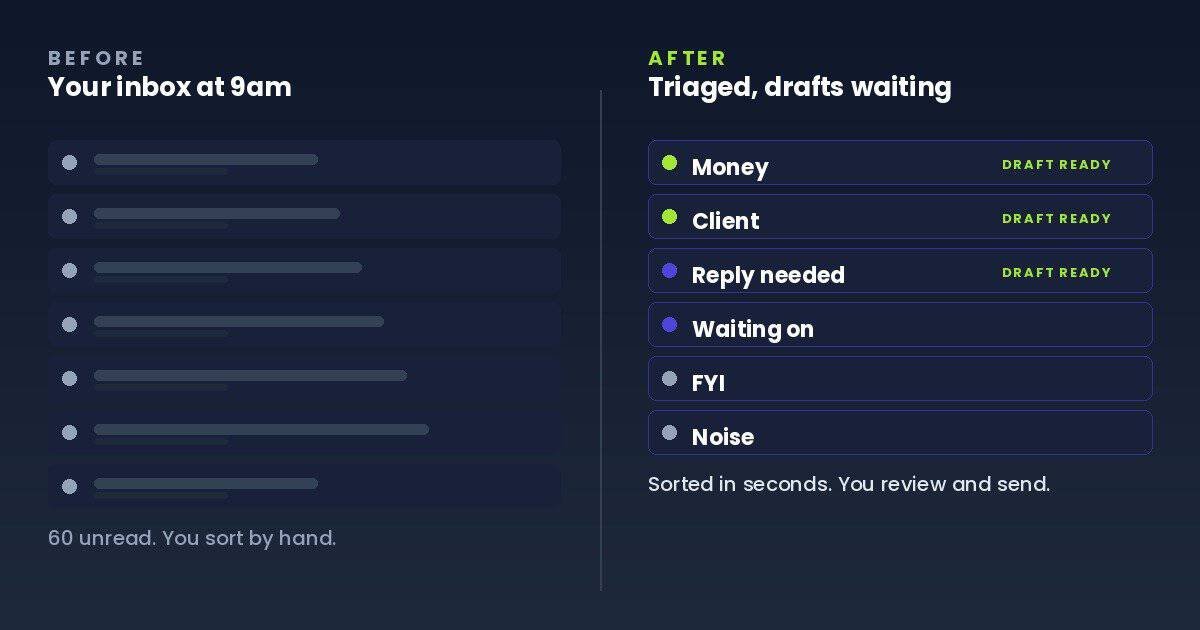
You open Gmail and sixty messages are waiting. Three of them matter: a client question, an invoice to chase, a reply someone needs today. The rest is newsletters, receipts, and noise. Twenty minutes later you have sorted the pile and still written nothing of your own.
You can hand that sorting to a model. This guide shows you how to automate Gmail with AI: a system that reads every new email, decides what it is, labels it, and writes a first-draft reply for the messages worth answering. It runs on a schedule and leaves the send button to you. Below is the four-step system, followed by an honest look at the three places the do-it-yourself version gets hard.
What it means to automate Gmail with AI
Most AI email tools are a chat box bolted onto your inbox. You still open each message and ask the model for help. That is assistance, not automation.
A working system does three jobs while you are away from the screen:
- Classify. Read each new email and decide what it is.
- Label. Tag each message by category so the inbox is sorted consistently.
- Draft. For messages that deserve a reply, write a first version in your voice and leave it in your drafts.
For my inbox, the classify step carries most of the value. Give a model six clear buckets and it can sort a morning of mail in seconds. I use Money, Client, Reply needed, Waiting on, FYI, and Noise, the same six buckets from the inbox-zero system I wrote about earlier. Start with sorting rather than auto-replies, because a clean, labeled inbox helps on day one, while trustworthy drafts take a little tuning.
How to automate Gmail with AI in 4 steps
Here is the shape of the build. The automation runs in Make, the thinking is done by Claude, and the moving parts are few. If you have never wired a Make scenario, my no-code guide to building an AI agent in Make covers the mechanics one module at a time.
Step 1: Watch the inbox
Make has a Gmail trigger called Watch emails that checks your inbox for new messages. Point it at your inbox, set the scenario to run every fifteen minutes, and each new email becomes the input for everything that follows. Make checks your inbox on this schedule rather than waiting for Gmail to push an alert, so each cycle spends an operation whether or not new mail arrived. Keep that in mind when you pick the interval, and check Make’s current credit rules before running faster than every fifteen minutes.
Step 2: Let the model sort it
Pass the sender, the subject, and a trimmed version of the body to Claude with a short instruction: here are my six buckets, return the one that fits and a one-line reason. A smaller, cheaper model like Claude Haiku handles this well, since sorting is far easier than writing. Constrain the answer to one of those six exact bucket names plus a one-line reason, returned in a fixed format, so the next step can route on it reliably instead of parsing loose text.
Step 3: File it with a label
Take the bucket name and apply it as a Gmail label, using the Update email labels module. Create the six labels in Gmail once, and the module applies the right one to each message, so every email is sorted consistently. A label tags a message, it does not reorder your inbox, so to make the priority buckets visibly rise above the rest you pair the labels with stars, Gmail’s multiple-inbox layout, or an archive rule for Noise. That priority view is where most of the daily relief comes from, and labeling is the safest part of the build, because a label never touches anyone else’s inbox.
Step 4: Draft the replies worth writing
For the buckets that usually need a response, Client and Reply needed, add one more model step, this time on a stronger model like Claude Sonnet, that writes a first-draft reply, then store it with the Create a draft email module. Pass the original thread’s identifier into that step so the draft lands inside the existing conversation rather than as a new message, and test it on a real thread before you trust it. The draft waits in your drafts folder. To make it sound like you rather than a polite stranger, give the model a short voice profile built from your own writing. I wrote a separate walkthrough on building one reusable profile you can paste into any prompt. The model never sends. You open the draft, fix what is off, and send it yourself.
Where the do-it-yourself version breaks
I run a version of this every day, and it is genuinely useful. It is also not magic. Three things get hard, and naming them is fairer than pretending they do not exist.
Thread context. The model reads one message at a time. When a client replies to a conversation from last week, the draft can miss what was already agreed. You can feed it the previous few messages in the thread, but that is more wiring, and it is never flawless.
Tone. The early drafts will sound a little off until you tune the voice profile and the prompt. Plan for a week of small corrections before you trust the drafts at a glance.
Upkeep and access. You are granting an automation permission to read your email, holding your own model key, and keeping the scenario healthy when Make or Gmail changes something. Each piece is manageable, and all of it is now yours to maintain. On cost, sorting an email runs a fraction of a cent and drafting one runs about a cent, depending on length and volume, and Make’s lowest paid tier is currently nine dollars a month on an annual plan, with model usage billed separately to your own key.
A production version also adds guardrails this overview skips: it filters out mail that never needs a model, flags a low-confidence sort for review instead of guessing, treats the email text as data the model should never take instructions from, and avoids handling the same message twice. That hardening is the difference between a useful demo and something you can leave running, and it is most of what the Inbox Engine adds on top of the four steps above.
Go deeper: the safeguards that separate a triage demo from a system you can trust are the whole subject of AI email triage with Claude: 7 safeguards that make it reliable.
Skip the build: the Inbox Engine
If you want the outcome without wiring it, that is the product this method became. The Inbox Engine is a ready-to-import Make blueprint with the two Claude prompts that drive it, classify and draft, already written and tested. It works with Gmail or Outlook, sorts each message into a bucket with a one-line reason, logs every email to a Notion or Airtable tracker you can search, and writes a reply draft in your voice. It never sends on its own.
It runs on accounts you control and uses your own Claude key, so the API calls are billed to you and, per Anthropic’s terms, your inputs are not used to train its models. Your email is still processed by the services in the chain, Make and Anthropic, plus Notion or Airtable if you enable logging, so review each provider’s data terms before pointing it at confidential mail. You import the blueprint, connect your accounts, and set your labels and voice profile, so most of the scenario is already assembled instead of built from scratch. The founding price is ninety-seven dollars, one-time, and it rises as the product matures.
FAQ
Does this work with Outlook or only Gmail?
The build above uses Gmail’s modules. The same architecture works with Outlook, but it is not a one-module swap: the trigger, the message and conversation identifiers, and the draft action all differ, and Outlook uses categories and folders where Gmail uses labels. On an Exchange or Microsoft 365 account you apply categories; on an IMAP-only account, where categories do not sync, you sort into folders instead. The Inbox Engine ships with the Outlook path already wired.
Is it safe to let AI send emails for me?
The system here never sends. It files and drafts, and you press send. That is deliberate. Auto-sending is where AI email goes wrong, because a model can misread a thread or invent a detail. Drafting keeps the speed and keeps you in control.
What does it cost to run?
Two line items. The automation platform, where Make’s lowest paid tier is currently nine dollars a month on an annual plan, and your model usage, billed to your own key per email. Classifying is cheap because the request is short, and drafting costs a little more. For a normal solo inbox the model calls land in the low single digits a month.
Will the drafts sound like me?
Out of the box they read like a competent assistant. They start to sound like you once you give the model a voice profile built from your own writing, and after a short tuning period the difference is clear.
Is my email used to train AI?
When you call a model through its API with your own key, your inputs are not used to train the model by default. That is different from pasting email into a consumer chat app, where the default can run the other way unless you switch it off. Policies vary by provider and plan, and they change, so check the current setting on the one you use.
Do I need to know how to code?
No. The build runs in Make, a visual no-code tool, with Claude added as a single module. If you can connect an account and paste a prompt, you can run it. The Inbox Engine removes even the building, since the scenario arrives pre-built.
Where to start
Start with sorting, not sending. Get the labels working first and the daily relief arrives the same day. That is all it takes to automate Gmail with AI: sort first, draft second, and keep the send button yours. When you want the full system without the wiring, the Inbox Engine hands it to you ready to import. And if you are earlier in your AI journey and want a free place to start, the Free AI Starter Kit is a good first step.