
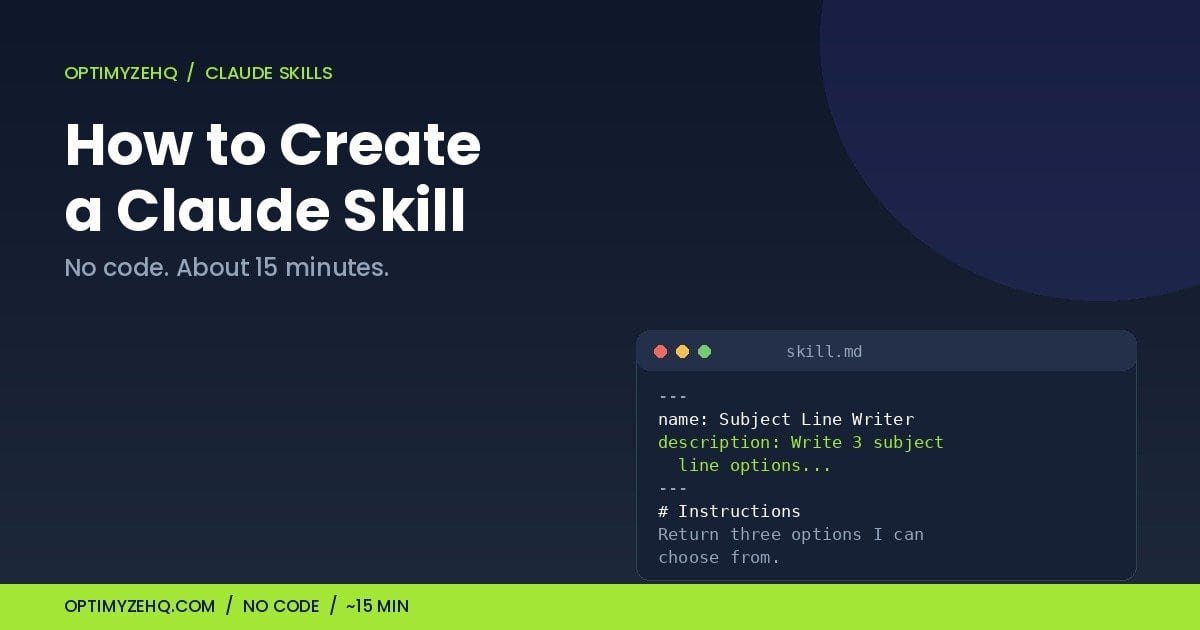
How to Create a Claude Skill (No Code, in About 15 Minutes)
You can create a Claude Skill in about fifteen minutes, without writing a line of code. This guide walks through how to create a Claude Skill from a blank file to a working tool Claude reaches for on its own, with a real example you can copy and adapt.
If you keep pasting the same context, the same voice rules, and the same instructions into Claude every time you start a task, a skill ends that. You write the instructions once, package them in a small file, and Claude loads them when a matching job comes up. New to the idea? Start with what Claude Skills are and the five jobs worth building first, then come back here to build one. It is one of the more useful moves in a wider AI workflow for solo operators.
What a Claude Skill actually is
A skill is a set of instructions Claude pulls in automatically when your task matches. The difference from a prompt is timing. A prompt is something you paste each time you need it. A skill sits in the background once installed and loads only when it is relevant, so you stop repeating yourself.
Underneath, a skill is a small folder with one plain-text file named skill.md. That file holds a name, a short description, and the instructions you want Claude to follow. More advanced skills can also bundle templates, reference files, and scripts, but you do not need any of that to build a useful one. Plain instructions are enough, and they keep the skill readable, which matters when you want to trust what it does. Skills are one piece of using Claude well as a solo operator.
Skills run on every Claude plan from Free to Enterprise, as long as code execution is turned on. No terminal, no Claude Code, no developer setup.
What you need before you start
Three things:
- A Claude account on any plan from Free to Enterprise.
- Code execution and file creation switched on, under Settings, then Capabilities.
- One repeatable task in mind. The narrower, the better. “Reply to client status questions” beats “handle my email.”
Anthropic’s guide to creating custom skills is the official reference if you want it alongside this one.
How to create a Claude Skill, step by step
Five steps, start to finish. The writing is the real work; the upload takes two minutes.
Step 1: Pick one job and name it
Choose a task you do at least weekly, that follows stable rules, and whose output you can judge at a glance. A good first skill is small. You can always widen it later. Not sure which job to pick? The five jobs worth building first is a good shortlist.
Step 2: Write the skill.md
Every skill starts with one required file, skill.md. A simple skill needs nothing else; more advanced ones can add supporting files and scripts. That core file has two parts, and the split matters.
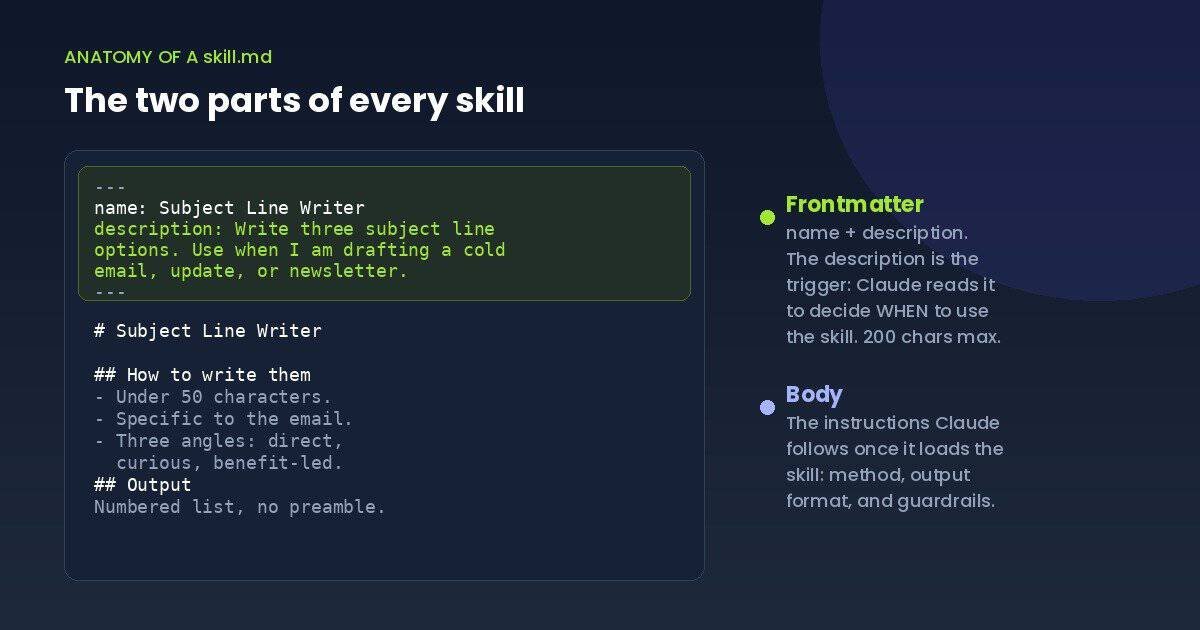
The top is the frontmatter, fenced by three dashes. It holds two required fields. The name is a human-friendly label, up to 64 characters. The description is the most important line in the file: Claude reads it to decide when to use the skill, so it must say both what the skill does and when to use it, in 200 characters or fewer.
The body, below the second set of dashes, is plain Markdown: the method, the output format, and any guardrails. Here is a skeleton you can fill in:
---
name: [Short name for the skill]
description: [What it does and WHEN to use it. This line is the trigger, 200 characters max.]
---

# [Skill name]

[One sentence: what this skill does when it runs.]

## How to do it
- [Rule 1]
- [Rule 2]
- [Rule 3]

## Output
[The exact format you want back.]

## Do not
- [Guardrail 1]
- [Guardrail 2]
The description carries the weight, so write it with care. Compare these two:
The weak version gives Claude nothing to match against, so it sits idle. The strong version names the trigger, so Claude pulls the skill in at the right moment.
Step 3: Package it as a ZIP
Put skill.md inside a folder named after your skill, then zip the folder. One rule trips people up: the ZIP has to contain the folder as its root, not the loose files. Correct is my-skill.zip holding a my-skill folder holding skill.md. Incorrect is a ZIP with skill.md sitting at the top level. On a Mac, right-click the folder itself and choose Compress. On Windows, right-click the folder and choose Compress to ZIP file. Do not open the folder and zip the loose file inside it.
Step 4: Upload it and turn it on
This is the no-code part:
- Open Customize, then Skills in Claude.
- Click to create a skill, then choose Upload a skill.
- Pick your ZIP and toggle the skill on.
If the upload is rejected, check the usual culprits: the file has to be named skill.md, the folder name should match the skill, and the ZIP has to hold the folder, not the loose file.
Step 5: Test it and tune the description
A skill is not finished when it uploads. It is finished when it triggers reliably. Run it through a short checklist:
- Give it an obvious matching request. Does it load?
- Reword the request. Does it still load?
- Give it something it should ignore. Does it stay out of the way?
- Feed it incomplete input. Does it ask for what is missing rather than invent it?
- Check the output format is the same each time.
If Claude does not use the skill when it should, the fix is almost always the description. Make it more specific about the trigger and try again. You can review Claude’s thinking in the reply to confirm it loaded the skill.
A worked example: a subject line skill
Here is a complete, simple skill you can try right now. It writes three subject line options for any email. It is deliberately small, so the file structure and triggering logic are easy to see before you build something more consequential.
---
name: Subject Line Writer
description: Write three short, specific email subject line options. Use whenever I am drafting a cold email, a client update, or a newsletter and need a subject that fits the message.
---

# Subject Line Writer

When I give you an email or a description of one, return three subject line options I can choose from.

## How to write them
- Keep each under 50 characters so it survives a phone inbox.
- Make each one specific to the email's actual content. No "Quick question" or "Touching base."
- Offer three different angles: one direct, one curiosity-led, one benefit-led.

## Output
A numbered list of three subject lines, each labelled with its angle. No preamble.

## Do not
- Do not use clickbait or fake urgency.
- Do not add emoji unless I ask.
Save that as skill.md, zip the folder, upload it, and turn it on. Then in any chat, paste an email draft and say you need subject lines. Claude loads the skill and returns three labelled options. Reword the description if it does not fire, and you have a working skill in well under fifteen minutes. A bigger skill, like a client-reply assistant, takes longer to get right, because the rules and edge cases need more testing.
The part nobody mentions
Two things will save you frustration later.
First, skills do not update themselves. Anthropic ships new Claude models regularly, and a skill that behaved one way on an older model can behave a little differently on a newer one. When a new model lands, rerun your important skills once on a real task and adjust the wording if anything drifted. It takes a few minutes.
Second, a word on trust. Skills can carry scripts and code, not only instructions, so enable skills only from sources you trust, and open the file to read it before you turn it on. Never put passwords or API keys inside a skill, and look twice at any skill that connects to outside services or installs packages. A skill built from plain instructions, like the one above, is something you can read top to bottom in under a minute, which is the safest kind to run.
Build one, or start with twelve
Now you know how to create a Claude Skill. The honest catch is that building one is quick, but building a library is not. Writing a description that triggers cleanly, testing it across cases, and re-checking it on each new model is real, repeated work for every job you want to cover.
That is the gap the Solo Operator Skill Pack fills. It is twelve skills for the jobs solo operators repeat most, including client emails, cold outreach, meeting notes, SOPs, bookkeeping prep, and weekly planning, each one already written, tested with real prompts, and shipped with version notes for model updates. Build your own for the niche jobs only you have, and start with the Pack for the common ones. If you would rather stay with prompts you paste for now, the Solo Operator Prompt Library is the paste-and-run starting point.
FAQ
Do I need to know how to code to create a Claude Skill? No. A useful skill is one plain-text file of instructions. You write clearly and upload a ZIP. Code execution has to be on in your settings, but you never touch a terminal or write code.
What is the difference between a skill and a prompt? A prompt is something you paste in each time. A skill is installed once, and Claude loads it on its own when a task matches. The full comparison, including how Projects fit, is in the guide to Claude Skills for solopreneurs.
Why is my skill not triggering? Almost always the description. It needs to state what the skill does and when to use it. Make the trigger explicit, save, and test again. Reviewing Claude’s thinking shows you whether it loaded the skill.
Do skills work outside the chat window? Yes. An enabled skill is also available in Cowork and, where your plan includes them, the Claude add-ins for Word, Excel, PowerPoint, and Outlook.
Do I need a paid plan to create a Claude Skill? No. Skills work on Free, Pro, Max, Team, and Enterprise, as long as code execution and file creation are turned on.
Build one this week
That is the whole loop: pick one job, write the skill.md, zip it, upload it, and test the description until it fires. Build one this week and the re-briefing tax starts to disappear. When you want the common jobs handled without building them yourself, the Solo Operator Skill Pack has twelve ready to install.