
Inbox Zero With AI: The 3-Layer System I Use (Classify, Prioritize, Draft)
Most mornings I open my laptop in Saint-Sauveur to somewhere north of eighty unread emails. The reading was never the hard part. The hard part is the deciding: which of these need me today, which can wait, which deserve a real reply, and which I can clear in one line. That deciding is what eats the morning.
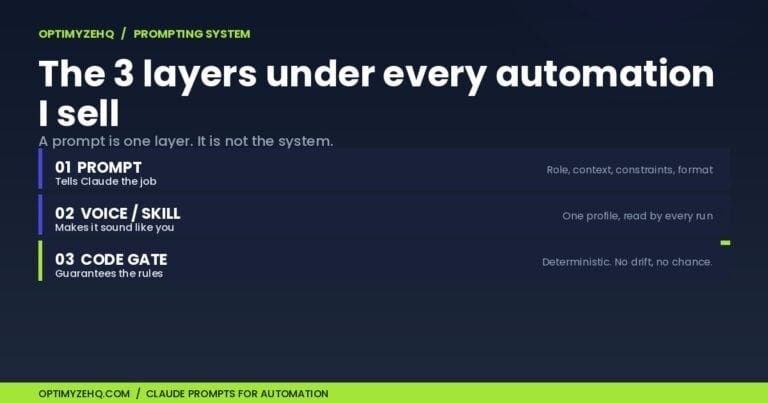
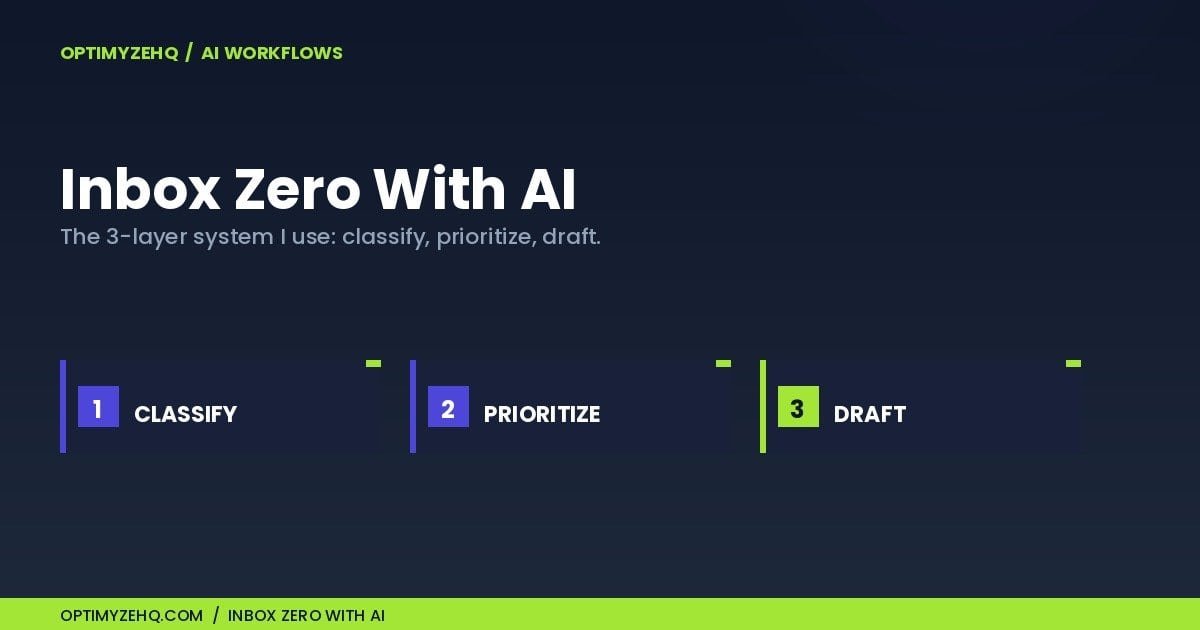
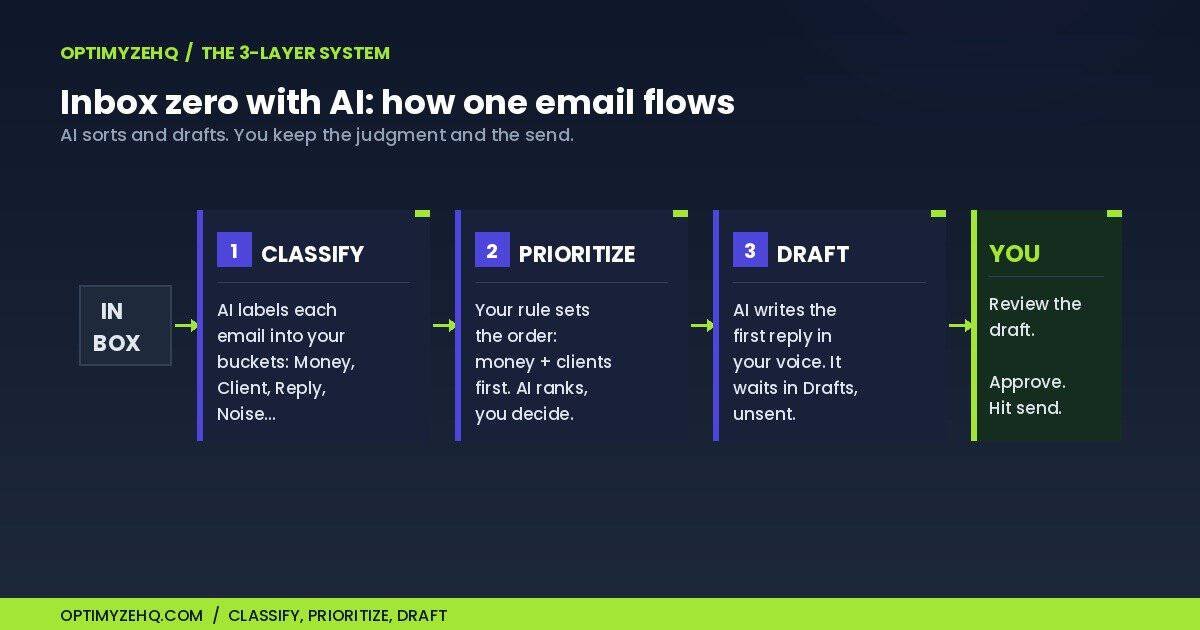
Inbox zero with AI is the system I built to take most of that deciding off my plate without letting a bot loose on my clients. It is not an auto-reply machine. It is three layers (classify, prioritize, draft), where AI does the sorting and writes the first version, and I keep the judgment and the send button. This piece walks through the system, what to automate, and the line I will not cross.
What inbox zero with AI actually means (and what it does not)
Inbox zero is a term the writer Merlin Mann coined back in 2006, and the part most people forget is that the zero was never about the message count. Mann meant zero of your attention stuck in the inbox while you are trying to do real work. An empty inbox is the side effect, not the goal.
That distinction matters once you add AI, because the temptation is to chase an empty screen by letting the machine answer everything. That is the fast road to a confidently wrong email going out under your name. Inbox zero with AI, done well, does the opposite: it shrinks the attention your inbox demands by sorting and pre-drafting, so that when you do sit down, you are approving and sending, not triaging from scratch.
Here is what it does not do. It does not read your mind about a delicate client situation. It does not know which “urgent” email is actually urgent for your business. And it does not get to hit send on anything that carries real money or a first impression. Those stay with you. The system earns its keep on the predictable work so you have attention left for the part that needs a human.
Who this is for
This system pays off if you are a freelancer, consultant, coach, or solo operator who gets enough email that triage eats part of your morning. If you get a handful of messages a day, the manual version is plenty and the automation is overkill. It is also a poor fit for inboxes that are mostly legal, medical, or financial detail, where the safer move is to read every message yourself rather than route any of it through a model.
Layer 1: classify (let AI sort the inbox into buckets)
The first layer is triage. Before anything gets answered, every incoming email gets a label, so your inbox stops being one undifferentiated pile.
Start with the taxonomy, because the buckets are the part only you can decide. Mine, after a lot of tuning, are six:
- Money: invoices, client payments, anything tied to getting paid.
- Client: active project mail from people I work with.
- Reply needed: a real person who expects a response, not a client.
- Waiting on: I am blocked until they answer.
- FYI: read once, no action.
- Noise: newsletters, receipts, notifications I skim later or never.
The mechanism is a short Make scenario: a Gmail “Watch Emails” trigger fires on each new message, passes the subject and body to Claude with a one-paragraph classifying prompt, and Claude returns one bucket name. A Gmail “Update labels” action writes that label back onto the email. (Outlook follows the same logic with Microsoft’s modules, though it sorts with categories or folders rather than Gmail labels, and you point the trigger at a folder.) The classifying prompt is the whole brain of this layer, and it is small:
You are my email triage assistant. Read the email below
and reply with exactly one label from this list:
Money, Client, Reply needed, Waiting on, FYI, Noise.
If an email fits more than one, pick the higher-stakes
label (Money first, then Client).
Reply with the label only, no explanation.

Email: {{subject}} {{body}}
One rule I keep: the Money bucket gets labeled and nothing more. I look at every one of those by hand. Automating the sort is safe. Automating my attention to money is not.
What this does to a morning: eighty-odd unread stops being one wall of text. A representative day sorts into maybe six Money emails and a dozen Client ones to handle first, a handful of Reply-needed and Waiting-on to batch later, and the rest (FYI and Noise) filed out of the morning view entirely. You open the inbox already knowing where to look.
Layer 2: prioritize (decide what actually needs you today)
Labels alone do not tell you what to do first. Layer two is the running order, and it comes from a rule you set once, not from the model guessing your priorities.
Mine is boring on purpose: Money and Client first, every day, no exceptions. Waiting on gets a glance to see if anyone unblocked me. Reply needed gets a batched window later in the day. FYI and Noise get archived or sent to read-later, never in the morning. Claude can rank within a bucket (which of four client emails reads as most time-sensitive), and that ranking is useful as a starting point. It is a suggestion, not a verdict. The model does not know that the two-line note from your biggest client outranks the long anxious one from a prospect who will not sign.
The payoff of this layer is quiet but real: you stop reacting to whichever email is loudest and start working the order that protects your income and your relationships.
Layer 3: draft (let AI write the first reply, in your voice)
This is the layer people think of first and should build last. For the predictable buckets, the ones where you write some version of the same reply over and over (scheduling, status updates, polite declines, the same three FAQs), AI drafts a response and parks it in your Drafts folder for you to approve.
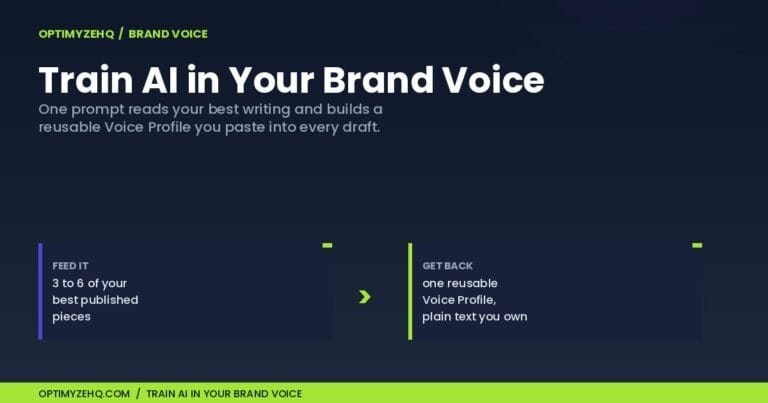
The mechanism: Claude takes the email plus a description of your writing voice and produces a reply, then a Gmail “Create a Draft” action saves it, unsent. Nothing leaves until you open it and hit send. The draft quality lives or dies on the voice description. A generic prompt gives you generic, slightly-too-eager AI prose. Feeding the model a reusable Voice Profile, the method I cover in training AI in your brand voice, is what makes the draft read like you wrote it on a normal day.
The drafting prompt is short and leans on that voice description:
Draft a reply to the email below in my voice.
Voice: {{my_voice_profile}}
Keep it brief and human. Write the email body only,
no subject, and no sign-off I would not use.

Email: {{subject}} {{body}}
A real example. A client asks for a status update mid-project. The drafted reply that lands in my Drafts folder:
Hi Marc, quick update. The three landing pages are
built and in review on my end. I am running the copy
pass today and tomorrow, and I will send all three for
your feedback Thursday morning. One open question: do
you want the pricing table on the homepage, or only on
the plans page? Let me know and I will lock it in.
I usually change one line before sending. That edit is the difference between a system that saves time and one that quietly makes a different kind of work. What I never auto-draft: anything emotional, anything contractual, and a first email to someone new. Those get a blank compose window and my full attention.
One more guardrail: a draft is not a source of truth. It can sound confident while missing context or inventing a detail it has no way to know. I treat every draft as a writing shortcut, never as a decision, which is the whole reason it waits for me in the Drafts folder.
What to automate, and what to keep human
The real decision in this whole system is not technical. It is where you draw the line. Here is mine.
| Bucket | Auto-label | Auto-draft a reply | Auto-send |
|---|---|---|---|
| Money | Yes | No | Never |
| Client | Yes | Routine updates only | Never |
| Reply needed | Yes | Yes, for FAQs and scheduling | No |
| Waiting on | Yes | No | No |
| FYI | Yes | No | No |
| Noise | Yes (archive) | No | No |
The pattern: I will automate sorting all day long, because a wrong label costs me a few seconds. I will let AI draft where the reply is predictable, because a draft I review costs nothing and saves the blank-page tax. I will not automate sending anything that touches money, a contract, or a relationship, because a wrong send costs trust, and trust is the business. Your line might sit in a different place. The point is to draw it on purpose.
The privacy rules I keep
Pointing AI at your inbox means being deliberate about what you feed it. A few rules I keep. I do not send attachments or full threads to the model by default, because the subject and the latest message are usually enough to classify, and shorter inputs cost less to run. I keep auto-drafting to low-risk buckets and read every draft before it goes. And the classify and draft calls run through my own Anthropic API key, not a consumer chat app, which matters for client mail: commercial and API inputs are not used to train models by default, while consumer chat apps can train on what you paste in unless you turn that setting off. Policies differ by provider and plan, so confirm your own settings before routing client mail through any model.
What it costs to run (briefly)
Two meters, both usage-based. The Make scenario runs on Make credits, the small per-module cost I break down in the Make.com for beginners guide. The Claude calls run on your own Anthropic API key, billed by tokens. The labeling step is cheap to run because it does not need your most capable model; a smaller, faster model class is plenty for sorting one email into one bucket, and that is where most of your volume sits. At a normal solo volume, classifying and drafting runs in the range of pennies per email. Long threads and attachments push the token cost up, which is one more reason to classify on the subject and the latest message rather than the whole conversation. The honest caveat: both meters rise with volume and with the number of Make steps each message runs through, and high volume is also where a bad automated send does the most damage, so the cost and the care climb together.
The realistic way to start
Do not build all three layers on day one. The build itself is an afternoon (my no-code AI agent walkthrough shows the Make side step by step). The slow part is the thinking: your buckets, your priority rule, your voice. So start manual.
For one week, label your own inbox by hand using your six buckets. You will find that two of them are wrong and one is missing. Then automate Layer 1 only, and live with it for a few days until the labels feel trustworthy. Add drafting last, for one bucket, and read every draft before sending for at least a couple of weeks. By the time you let it run, you are approving a system you understand, not hoping a black box behaves.
Frequently asked questions
Will AI send my emails without me?
Not in this setup. The drafting layer ends at a “Create a Draft” action, so every reply sits unsent in your Drafts folder until you open it and send it. You can add an auto-send step, but I do not for anything tied to a client or to money, and the system is built so that review is the default rather than the exception.
Is it safe to point AI at my client emails?
It can be, with care. The scenario reads your mail through a Google or Microsoft connection you authorize and control, and if you stop at the draft step, nothing leaves without your review. The real caution is confidentiality: a thread can carry client names, NDA material, or licensed content, so decide what you are comfortable passing to a model and remove anything sensitive before it goes into a prompt.
Do I need to know how to code?
No. The whole system is built from Make’s drag-and-connect modules and a few plain-language prompts. If you can connect an app and paste a prompt, you can build it. The step-by-step lives in my no-code AI agent guide.
Does this work with Outlook, or only Gmail?
Both. Make has modules for Gmail and for Microsoft Outlook, and the logic is identical either way: watch new mail, classify it with Claude, sort it (a Gmail label, or an Outlook category or folder), and draft replies for the predictable buckets. The one difference is the sorting step, since Outlook uses categories and folders where Gmail uses labels.
How is this different from Gmail’s built-in smart replies?
Gmail’s own Gemini tools have caught up on drafting: Help Me Write and Suggested Replies can now draft a reply in your tone. The difference is scope and control. Those tools assist one message when you ask; this system runs on every incoming email, sorts your whole inbox into your own buckets, prioritizes by your rule, and pre-drafts the predictable replies before you arrive, on the model you choose, and it reaches past Gmail to Outlook and a tracker. It is less a reply button and more a triage system you own.
What does it cost to run?
Two usage-based meters: Make credits for the scenario and your own Anthropic API key for the Claude calls, usually pennies per email at solo volume. Both rise with email volume, and a higher volume is also where review matters most.
The takeaway
Inbox zero with AI is not about an empty screen. It is about getting your attention back, by handing the sorting and the first drafts to a system you control and keeping the judgment for yourself. Start with the buckets, automate one layer at a time, and never let it send what you would not.
Start with Layer 1. Grab the free AI Starter Kit (a free kit of prompts and starter scenarios), copy the classify prompt above, and label your inbox by hand for a week before you automate anything. From there, the Make.com for beginners guide covers the build, the brand-voice method makes the drafts sound like you, and the Claude for solopreneurs playbook ties the wider workflow together.
Ready to build it? The step-by-step walkthrough for wiring this in Make is in Automate Gmail With AI. And if you would rather import the whole system than build it, the Inbox Engine hands it to you pre-built, with the classify and draft prompts included.
Make it reliable: once the system is clear, see the seven safeguards behind reliable AI email triage with Claude.