
Make.com for Beginners: The No-Code Automation Guide I Wish I’d Had
The first time I opened Make, I closed it within five minutes.
A blank canvas, a little clock icon, a button that said “Add another module,” and no obvious place to start. Every tutorial I found either assumed I already knew what a “scenario” was or buried the one thing I needed under twenty things I didn’t. I run OptimyzeHQ alone from Saint-Sauveur, Quebec, and at the time I was trying to stop hand-copying the same client emails every week. Make was supposed to fix that. Instead it sat there looking like a circuit board.
Eighteen months later, Make runs the core of the two products I sell. This is the make.com for beginners guide I wish someone had handed me on day one: what Make actually is, the handful of words that unlock the whole thing, the shape of your first working automation, and what it really costs in 2026 now that the billing has changed.
This guide is for solo creators, freelancers, and solopreneurs who want to automate repetitive work without writing code. It is not written for developers or enterprise automation teams.
What is Make, exactly?
Make (at make.com, and called Integromat until it rebranded in February 2022) is a visual, no-code automation platform. You connect the apps you already use, Gmail, Notion, Airtable, Stripe, a few hundred others, and draw a workflow that moves and reshapes data between them while you do something else. It is owned by Celonis and, by its own count, runs automations for more than 400,000 organizations across 3,000-plus apps.
The mental model that finally made it click for me: Make is a flowchart that runs. You lay out circles, where each circle is one step, and connect them with lines that carry data. When the first circle notices something happen, the data flows down the line to the next circle, gets reshaped, and lands wherever you sent it. No servers, no code, no scheduled jobs to babysit.
What Make is not: it is not a chatbot you talk to, and it is not an “automate my business” button. It runs the logic you give it, faithfully, including your mistakes. Build a loop wrong and it will happily run that loop a thousand times. The skill you are actually learning is not Make. It is breaking a task into small, explicit steps. Make is the canvas where those steps run.
The Make vocabulary, in plain English
Eight words carry almost everything in Make. Learn these and most tutorials suddenly make sense.
| Term | What it means | A plain example |
|---|---|---|
| Scenario | The whole workflow you build. One scenario equals one automation. | “When a Stripe payment lands, add a row to Airtable and email me.” |
| Module | A single step inside a scenario: one app doing one thing. | The “Stripe → Watch Events” step, or “Airtable → Create a Record.” |
| Connection | The authorized link between Make and one of your apps. | You log into Gmail once; Make stores the connection and reuses it. |
| Trigger | The first module: the event that starts the scenario. | A new email, a new form submission, a set time of day. |
| Action | Any module after the trigger that does something. | Create a record, send a message, update a field. |
| Operation | One module run. Make counts these to measure activity. | A 4-module scenario that runs once uses about 4 operations. |
| Credit | The unit Make bills in since August 27, 2025. A standard module costs 1 credit per operation. | 10,000 credits a month on the entry paid plan. |
| Mapping | Wiring one module’s output into the next module’s input. | Drop the email’s “subject” into Airtable’s “Title” field. |
Three more you will meet soon, defined briefly so they aren’t a surprise: a filter is a condition on the line between two modules that lets data pass or stops it; a router splits the flow into branches (one path for paid clients, another for unpaid); and an iterator breaks a list into separate items so you can handle each one, with an aggregator doing the reverse. You don’t need these for your first build, and I’ll show where they fit when we get there.
How do you build your first scenario?
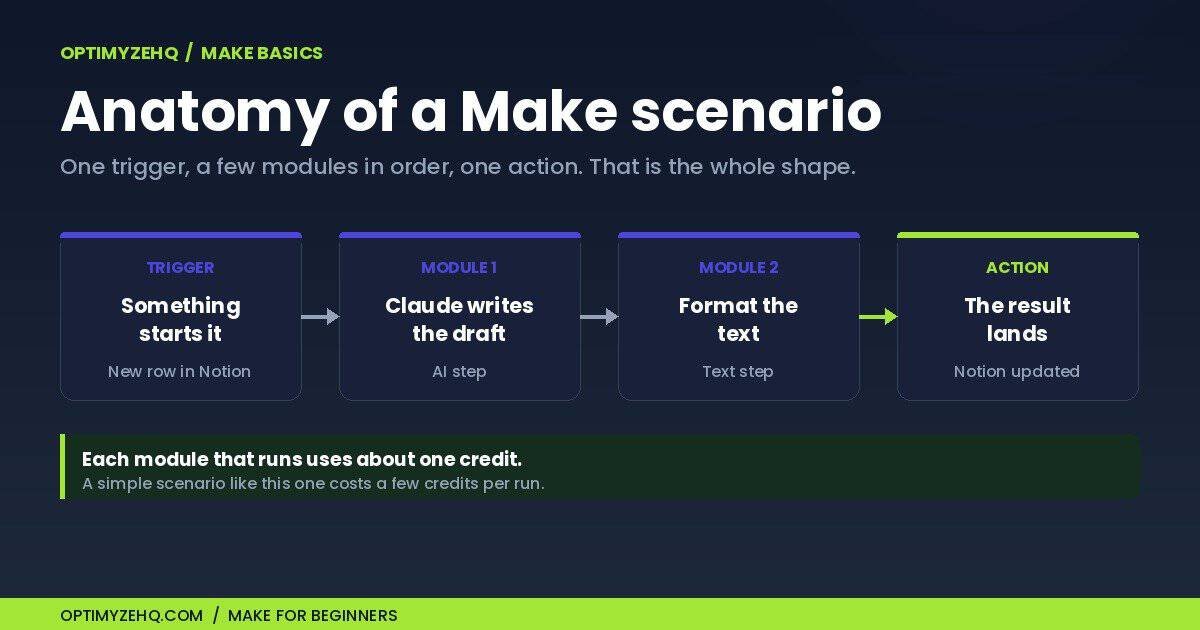
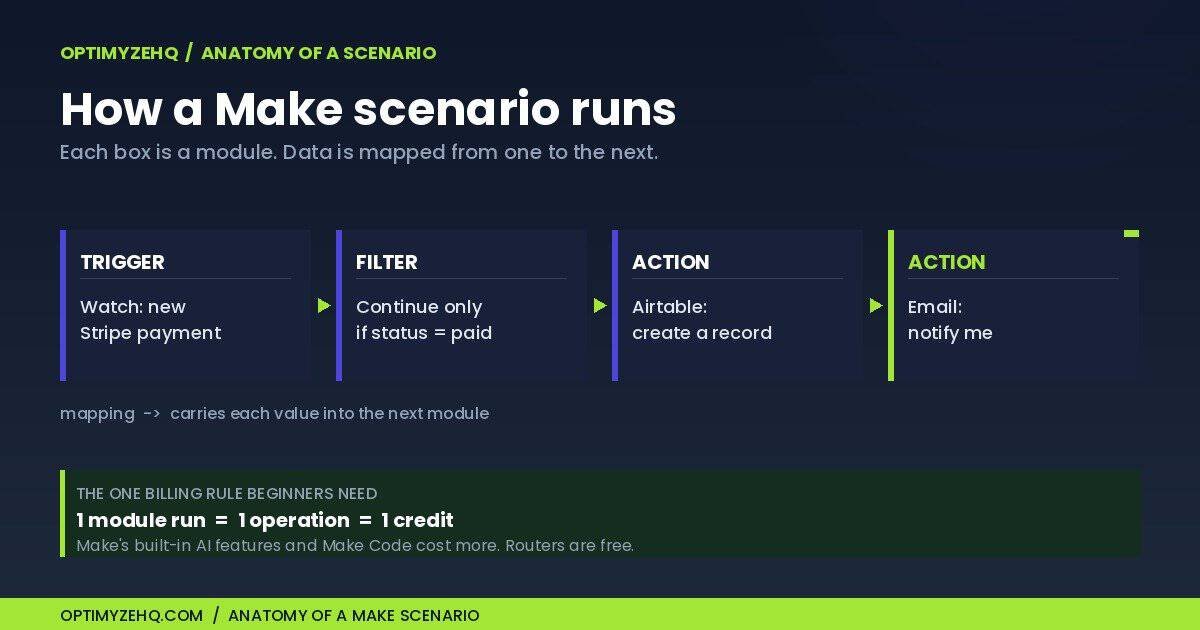
Every useful scenario follows the same three-beat shape: something happens, Make reacts, you check the result. Once you see that shape, the blank canvas stops being intimidating. Here is the build I recommend first, because it proves the whole idea in about fifteen minutes: when something lands in an app you already use, a new labeled email, a form submission, or a paid invoice, log it to Airtable and send yourself a note. I’ll use a Stripe payment as the running example, but the shape is identical whatever the trigger.
- Pick the trigger. This is the first module and the event that starts everything. You search for your app (say Stripe) and, the first time you use it, log in once to authorize the connection, which Make reuses afterward. Then you choose a “Watch” module, which is Make’s name for a trigger that polls the app on a schedule and fires when it sees something new. Some apps offer an instant trigger instead, where the app pushes data to Make the moment something happens through a webhook. (A webhook is a special web address that lets an app notify Make the instant something happens, instead of Make checking on a schedule.) Polling is simpler to start with; instant is faster and uses fewer runs.
- Add an action. Click the half-circle beside your trigger and add the next module: Airtable, “Create a Record.” This is the step that does something with the data the trigger caught.
- Map the data. This is the part every beginner misses. You do not retype the invoice amount. You open the Airtable field, and Make shows you a panel of every value the Stripe trigger produced. You drop “Amount” into the amount field, “Customer email” into the email field, and so on. Mapping is the wiring that makes the second module aware of the first.
- Add a filter if you need one. Set a condition on the line between two modules, for example “only continue if status is paid.” Data that fails the filter stops there, and the rest of the scenario never runs.
- Run once before you trust it. The “Run once” button executes the scenario a single time against real data and draws a small bubble over each module showing exactly what passed through. That is your debugger. Read those bubbles before you schedule anything.
- Turn on the schedule. Flip the toggle from off to on and set how often it checks: every 15 minutes on the free plan, down to every minute on paid, or instantly if you used a webhook trigger.
Before you switch a scenario on, run through a quick checklist.
- The trigger is watching the right event.
- The mapped fields point to the right places.
- Any filter is passing the data you expect.
- The test run produced the result you wanted.
- The schedule is no more frequent than the task needs.
And save your work with the toolbar save icon before you leave the editor, so a refresh never costs you your mapping.
That is the entire pattern, and you can point it at form submissions, client onboarding, or new subscribers without learning anything new. The Creator Content Engine and Client Pipeline Engine, the two paid products I sell, are the same watch-process-act shape, only with more modules and a Claude step in the middle. Master one small scenario and the big ones are longer, not harder.
The best first Make automations for beginners
If you want concrete ideas, here are five low-friction automations worth building first. Each is the same watch-process-act shape with everyday apps.
- Save new form submissions to Airtable, so leads never sit in your inbox.
- Send a confirmation email after a Stripe payment.
- Add new subscribers to MailerLite the moment they sign up.
- Turn client intake answers into a task in Notion.
- Send yourself a weekly summary of new leads.
Make vs Zapier: which should a beginner pick?
Short answer: start with Zapier if you want the simplest on-ramp and the widest app catalog; choose Make if your automations will branch, repeat, or grow multi-step, and you care about cost. I went with Make because every workflow I build eventually sprouts extra branches, and Make stays affordable as it does.
The core difference is how they count usage and how they look. Zapier bills by task, where a task is one action it completes, and triggers and filters are free. Make bills by credit, where almost every module run costs one credit. Zapier lays your automation out as a linear list of steps; Make draws it as a flowchart you can branch and loop. For a two-step “do this, then that” automation, Zapier is faster to set up. For anything with conditions and multiple paths, Make’s canvas is often easier to reason about, and can be cheaper depending on how often the scenario runs.
| Dimension | Make | Zapier |
|---|---|---|
| Billing unit | Credits (almost every module run) | Tasks (completed actions only; triggers and filters free) |
| Builder | Visual flowchart, branches and loops | Linear step-by-step list |
| Easiest start | Moderate | Easiest |
| App catalog | 3,000-plus | 8,000-plus |
| Entry paid plan | $9/month (Core, billed annually) | about $30/month billed monthly |
(Zapier figures from Zapier’s own pricing, June 2026; the deep three-way comparison is linked below rather than to a competitor page.)
There is a third name you will hear: n8n, a more technical tool that offers managed cloud hosting or can be self-hosted on your own server. It is powerful and popular with developers, but for most non-developers Make is the easier place to start, because you get the visual canvas without standing up any infrastructure.
Where does Claude fit in all this? Make is the plumbing; Claude is the brain you plug into one of the steps. When a workflow needs judgment, to write a client reply, summarize a transcript, or classify an incoming request, you add a Claude module as one action in the scenario and map your data into it. That single move, a visual automation tool wrapped around a capable model, is what most of my real systems are. I wrote a full walkthrough of that pairing in the Make and Claude guide, and a deeper breakdown of the trade-offs in Make vs Zapier vs Claude Cowork.
How much does Make cost in 2026?
Make has a real free plan: 1,000 credits a month and two active scenarios, enough to learn on and run one small automation. Paid plans start at $9 a month billed annually, or $10.59 month to month. Here is the full picture as of June 2026 (Make changes pricing periodically, so check the live pricing page before you commit):
| Plan | Price per month* | Credits per month | Best for |
|---|---|---|---|
| Free | $0 | 1,000 | Learning; 2 active scenarios, 15-minute minimum interval |
| Core | $9 | 10,000 | Your first real automations; unlimited scenarios, 1-minute interval |
| Pro | $21 | 10,000 | Heavier use; priority execution and custom variables |
| Teams | $38 | 10,000 | A small team; shared templates and roles |
| Enterprise | Custom | Custom | SSO, audit logs, dedicated support |
*Monthly price for the 10,000-credit tier. Annual billing saves roughly 15%. Pricing last checked June 9, 2026; Make updates plans and credit limits from time to time, so confirm details on the official pricing page before you buy.
Two things confuse beginners here, so let me separate them. The monthly plan fee is a flat subscription. The credits are the metered part, the fuel your scenarios burn. A standard module run costs one credit. Make Code (an advanced feature for writing custom scripts) and Make’s built-in AI features cost more, and credits scale alongside usage allowances like data transfer. If you run out, scenarios pause and Make warns you at 75 percent and 90 percent of your balance; you can buy more credits in bundles or let them auto-purchase.
For a solo operator, most automations are cheap. A five-module scenario that runs a few hundred times a month sits comfortably inside the Core plan’s 10,000 credits. What runs the meter up is high-frequency polling (checking every minute when every hour would do) and heavy use of Make’s native AI. One more distinction worth knowing: if you plug in your own Claude or OpenAI key as a third-party module, that module run still costs one Make credit, but the model’s token usage is billed by the provider separately. For Claude specifically, that bill comes from Anthropic and varies by model, not from your Make credits. As a rough guide in June 2026 it started around $1 per million tokens for the smallest model and rose for more capable ones, so check Anthropic’s pricing before you estimate AI costs.
That last point matters for budgeting: your Make bill and your AI bill are two separate things.
Where does Make fit in a solo business stack?
Make is the connective tissue. On its own it does nothing; its whole job is to move work between the tools that already hold your data. In my one-person business the stack is small and each piece has one role: Notion and Airtable hold information, Kit and Resend send email, Stripe takes payments, Claude handles the writing and judgment, and Make wires them together so I am not the one carrying data from one to the next.
The pattern that makes this worth the effort: any task shaped like “when X happens, go do Y in another app” is a Make job. New subscriber, add to the welcome sequence. Form submitted, create a client record and send the intake email. Invoice marked paid, stop the reminder and log the revenue. None of these are hard on their own. The win is that you stop being the integration between your own tools.
If you are still deciding which automations to build first, I laid out the whole solo-business approach, which tasks to automate before others and why, in the master guide to AI workflows for solopreneurs. This Make pillar is the “how the plumbing works” companion to that “what to build” overview.
What Make isn’t good for
Make earns trust by being honest about its edges, so here are the real ones.
It is not for anything that must happen in well under a second. Make is quick, but it is built for “within a minute or two,” not for live, sub-second responses.
It is not your database or your website. Make does have basic Data Stores for holding small amounts of data between runs, but they are not your permanent records, and Make does not show anything to your customers. Keep your real data in Airtable or Notion and let Make move it around.
It does not save you from unclear thinking. Make runs your logic exactly, including the gaps. If you have not thought through every branch (what happens when the email is missing, when the payment is partial, when the same record arrives twice), the automation will do something surprising. Most “Make is broken” moments are really “my logic had a hole” moments.
It can get expensive in the wrong shape. High-frequency polling and heavy native-AI use burn credits fast. The fix is design, not budget: check less often, filter early so cheap modules run before expensive ones, and prefer instant webhook triggers over constant polling.
One caution matters more than the rest, because Make often touches client and financial data: be deliberate about what you feed into AI steps. Keep genuinely sensitive inputs (health details, payment card numbers, anything under a confidentiality agreement) out of automated prompts until you have checked each tool’s data policy. For the Claude side specifically, Anthropic does not train on inputs or outputs from its API and commercial products by default, but that is provider-specific and worth confirming for every service in your chain rather than assumed.
Common Make.com beginner mistakes
Three mistakes catch almost everyone at the start.
The first is building too much at once. Start with one trigger and one action, get that running, then add filters, routers, or an AI step. Safety nets like Make’s error handlers can come later, once the basic shape works.
The second is checking too often. A scenario set to run every minute burns credits even when nothing is happening. Match the schedule to how fresh the data needs to be; hourly or daily is plenty for most solo tasks.
The third is skipping the test. Always use Run once and read the data bubbles before you turn a scenario on. Most surprises show up right there, before they cost you anything.
The fourth is ignoring duplicates. Before a scenario creates a new record, page, or email, decide how it recognizes something it has already handled, or you will get repeats. A filter or a quick search step usually solves it.
Make.com for beginners: your most common questions
What is a Make scenario?
A scenario is a single automated workflow in Make. It starts with a trigger, runs through one or more modules that move and reshape your data, and ends with an action in another app. One scenario equals one automation.
Is Make.com free?
Yes. Make has a free plan with 1,000 credits a month and two active scenarios, enough to learn on and run one small automation. Paid plans start at $9 a month billed annually (June 2026) and scale with the number of credits you need. Many everyday tools a solo operator uses, like Gmail, Notion, Airtable, and Stripe, can be connected on the free tier, though some advanced modules or features may need a paid plan.
What changed when Make moved from operations to credits?
On August 27, 2025, Make replaced “operations” with “credits” as its billing unit. Existing balances converted one-to-one, and prices did not change. A standard module run still costs one credit; the word “operation” now describes module activity, while credits are what you buy and spend. Make’s built-in AI features consume credits dynamically rather than at the flat one-per-run rate.
What are Make operations and credits?
An operation is one module run, the unit Make uses to show activity on the canvas. A credit is what Make deducts to pay for that activity. For most standard modules one run equals one credit; built-in AI features and Make Code can cost more. Since August 27, 2025 credits replaced operations as the billing unit, though you will still see operation counts in the builder.
Do I need to know how to code to use Make?
No. Make is a visual, no-code tool: you build by dragging modules onto a canvas and mapping fields between them. There is an optional code module for advanced cases, but the large majority of automations never touch it.
Is Make better than Zapier?
Neither is better outright. Zapier is easier for a first-timer and has a larger app catalog. Make can be cheaper, and it is stronger for multi-step, branching workflows, because it is built around a visual flowchart. If your automation is two linear steps, Zapier wins on speed; once it branches, Make wins.
How long does it take to learn Make?
You can build a first working scenario in 15 to 30 minutes. Most people feel comfortable after about a week of building small automations. The real learning is not the interface; it is getting used to breaking a task into explicit steps.
Can Make use AI like Claude or ChatGPT?
Yes. You add an AI module as one step in a scenario and map your data into it, using either Make’s built-in AI or your own provider key. On cost, the module run uses one Make credit and the model’s token usage is billed by the provider, as covered in the pricing section above.
Start with one scenario
If you take one thing from this guide, make it this: pick a single repetitive task that annoys you and build the three-step version of it this week. Not your whole business. One scenario. The understanding compounds from there, and the blank canvas never looks the same again.
That is the whole promise of a good make.com for beginners walkthrough: one small, working automation changes how you see the rest. To skip the empty canvas, download the free Creator’s AI Starter Kit. It gives you starter prompts, beginner workflow patterns, and ready-to-adapt automation examples you can use before you build your first full scenario.
The other half of the stack: Make moves the data; Claude does the thinking. The Claude AI for solopreneurs pillar maps the five Claude surfaces and where the API fits among them.
A complete build to copy: the Cluster C pillar, how to build an AI content system, shows the five-stage content pipeline that scenarios like these power.
Put Make to work on client admin: the Cluster D pillar, Client Management for Freelancers, shows the five-stage client system built on the scenarios this guide teaches.
Picking a platform, not only learning one? Once Make makes sense, the next question is whether n8n is worth your time too. The full n8n vs Make verdict for beginners settles it by who you are.
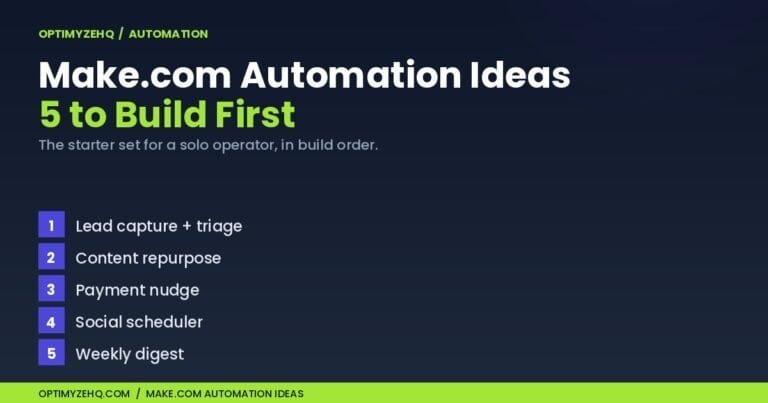
Got Make, now what? Once the basics click, the next move is picking your first builds. The five Make.com automations to build first walks through the starter set in build order, with one wired end to end.
Build your first agent: Once you are comfortable building scenarios, follow the step-by-step guide to build an AI agent in Make.com that triages your inbox and drafts replies.