
Airtable CRM for Freelancers: Build a Lead Tracker in 6 Steps
Every lead I have ever lost, I lost the same way. Not to a competitor. To a sticky note, a starred email, or an “I’ll follow up next week” that never happened. The work was there. I did not have one place that told me who to chase and when.
A spreadsheet does not fix this, because a spreadsheet forgets. It has no idea a follow-up is due today. And a subscription CRM built for a sales team is the opposite problem: forty features, a monthly bill, and a pipeline stage called “Discovery Call” you will never touch.
There is a middle option most freelancers skip. An Airtable CRM for freelancers gives you the one thing a spreadsheet cannot deliver and the paid tools overcharge for: a real relational database that shows you exactly which leads need a nudge, for free, in an afternoon. This is the base I actually run, built by hand, in six steps.
Why an Airtable CRM beats a spreadsheet (and a subscription CRM)
Start with what each option really is. A spreadsheet is a flat grid. It stores rows, and that is all. It will not tell you a follow-up is overdue unless you build and babysit that logic yourself, it cannot show you one client’s full history in one click, and it will happily let you type a status that does not exist.
A subscription CRM sits at the other extreme. HubSpot, Pipedrive, and the rest are built and priced for sales teams. As one person, you would pay a monthly fee to ignore most of the interface. The deal-forecasting, the team assignments, the reporting dashboards: dead weight for a solo operator.
Airtable is the middle. It looks like a spreadsheet, so there is nothing new to learn, but each row is a database record you can link, filter, and view several ways. And the free plan is genuinely enough for a one-person pipeline. As of mid-2026 it gives you 1,000 records per base (per Airtable’s pricing page). One honest caveat: that cap counts every row in the base, logged interactions included, so in practice it holds a few hundred active leads with a real touch history. Still far more runway than most freelancers will use before paying a cent. The relational part is the whole point, and I’ll come back to it in step four.
What an Airtable CRM for freelancers should track (and what to leave out)
The fastest way to ruin this build is to track everything. Scope discipline is what keeps it usable. This base has one job: the people who might become clients, and the ones who did.
Track five things and no more: the lead, where they came from, what stage they are at, when to follow up next, and a rough sense of what the work is worth.
Leave out the delivery back office. Invoicing, project tasks, file storage, onboarding steps, testimonial requests: none of that belongs here. That is a separate job with its own system, and I keep it in a dedicated client-management system for freelancers. The line is simple. This base tracks people until they say yes. The moment work starts, delivery lives somewhere else.
Build it in 6 steps
Open a free Airtable account and create one new base. The whole system is two linked tables and four views, and everything below lives inside that one base. None of this needs a paid plan. One heads-up: Airtable starts your first workspace on a 14-day Team trial, so ignore the paid extras; everything in this build still works on Free after the trial ends.
1. Create the Leads table and its core fields
Rename the default table to Leads. Add these fields:
- Name (single line text)
- Company (single line text)
- Email (email field)
- Source (single select: referral, inbound, cold outreach, network, event)
- Estimated value (currency): a rough planning number, not a forecast
- Notes (long text)
- Date added (created time, fills itself)
That is a working contact list already. Leads can enter by hand, and at low volume that is fine; when you want inbound inquiries to land without retyping, add a form view to the Leads table and share the link (form views are on the free plan). The next three fields are what turn it into a CRM.
2. Add a Status pipeline
Add a single-select field called Status with these options, in order: New, Contacted, Replied, Proposal Sent, Won, Cold. Give each a color. This one field is your entire pipeline. Later you will drag leads between these stages on a kanban board, but even as a colored column it tells you at a glance where everyone stands.
3. Add the follow-up date field (the one that saves you)
Add a date field called Next follow-up. This is the single most important field in the base. Every lead that is still alive has a date here. Every lead with no date is either won or dead. That rule alone means nothing can quietly slip through, because “no date” becomes a visible signal instead of an accident.
4. Link an Interactions table (the relational upgrade)
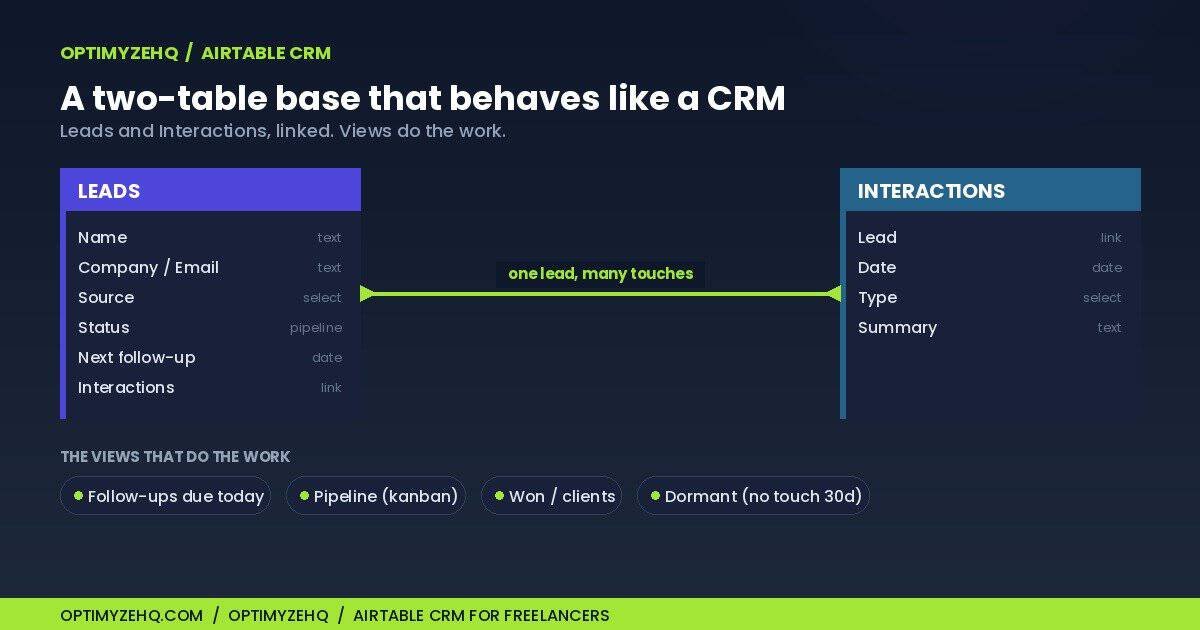
Create a second table called Interactions. Give it four fields: a link to Lead, a Date, a Type (single select: email, call, DM, meeting), and a Summary (long text). Every time you talk to a lead, log one row here.
This is the thing a spreadsheet cannot do. One lead now connects to many interactions, all in one place, so you open a prospect and see the entire history: the first email, the call three weeks ago, what they said about budget. That link between one lead and many touches is the exact line between a contact list and a real CRM. If you want that payoff visible at a glance, add one optional field to the Leads table: a rollup of the most recent Interactions date, so the last touch shows without opening the record.
5. Build the four views that do the work
Views are saved filters. This is where Airtable stops being a nicer spreadsheet and starts running your week. Build these four on the Leads table:
- Follow-ups due today: filter where Next follow-up is on or before today, and Status is not Won or Cold; sort by date. This is your daily to-do list.
- Pipeline: a kanban view grouped by Status. Your whole funnel on one screen, drag to move a lead forward.
- Won: filter where Status is Won. Your client roster, one click away.
- Dormant: filter where Next follow-up is empty and Status is not Won or Cold. The leads that broke the rule from step 3, surfaced instead of buried.
6. Optional: one reminder automation
Airtable’s free plan includes 100 automation runs a month (mid-2026), which is plenty for one useful thing: a daily email that lists your follow-ups due today. Build that single automation and stop there. One setup note: Airtable automations run on GMT, so set the schedule with your timezone offset in mind or the “due today” filter can fire a day off. Do not wire up an automation that fires on every record edit, because that burns the 100 runs in a day or two. Heavier automation is a real decision, and I cover it at the end.
The one habit that makes it work
Here is the uncomfortable part. The base does not chase anyone for you. It removes the excuse, not the work.
The habit is two minutes long. Open the “Follow-ups due today” view every morning and clear it. Send the message, then set the next follow-up date. That is the whole discipline. The tool’s only job is to make sure no live lead is ever invisible, and it does that job perfectly. The rest is you, showing up for two minutes a day.
Where AI fits (without overbuilding)
You do not need to automate the base to get real value out of AI. The highest-value use is drafting. Paste a lead’s interaction summary into Claude and ask for a follow-up or a first message, then edit and send. To keep those drafts sounding like you and not like a robot, reuse a saved brand-voice profile so every message starts in your voice.
The cold first message is its own craft, and I broke down the anatomy of one that earns a reply in how to write a cold email with AI. For now, resist the urge to wire Claude directly into Airtable. At low volume, copy and paste is completely fine. Automating the drafting is a build-layer decision, not a starting point.
When to graduate to an automated, scored pipeline
The hand-built base is the decide layer. You look, you judge, you act. It works beautifully until volume climbs. When fifty new leads land in a week, you can no longer eyeball which five actually matter, and the two-minute morning habit turns into an hour.
That is the point where scoring and automation earn their keep: an ICP-aware score on every incoming lead, follow-up drafts generated and queued, the whole flow running in the background. That is exactly what the Lead Engine is, the scored, automated version of this same base, with the Make scenario, the qualification gate, and the prompt pack already built. Its pipeline adds a research stage and scores every lead, so a few stage names differ from the hand-built base, but the spine is the same. If you want to see the full pipeline it plugs into, the system I built to get clients with AI walks through it end to end, and my automated client back office shows the same idea applied to delivery.
The honest advice: build the free base first. Run it for a month. If your real problem turns out to be volume, graduate to the automated version. If it stays “I keep forgetting to follow up,” you already have the fix, and it cost you nothing but an afternoon.
FAQ
Is Airtable a real CRM?
Not out of the box, and for a solo operator that is an advantage. Airtable is a database you shape into a CRM, which means no fields or stages you do not need. The moment you link a Leads table to an Interactions table, so one lead holds its full history, it behaves like a CRM rather than a contact list.
Is Airtable free for freelancers?
Yes, and the free plan has no time limit. As of mid-2026 it gives you 1,000 records per base counted across all tables, 1 GB of attachments per base, 100 automation runs a month, and up to five editors. Logged interactions use the record cap faster than leads do, but for a one-person tracker it is still plenty. Check Airtable’s pricing page for the current numbers before you rely on them.
Airtable versus a spreadsheet for a CRM?
A spreadsheet is flat and it forgets. Airtable links records, filters them into saved views, and can send you a reminder. The “follow-ups due today” view alone, which a spreadsheet will not produce without formulas you build and maintain yourself, is worth the switch for most freelancers.
Airtable versus HubSpot or a paid CRM?
Paid CRMs are built and priced for sales teams, and most of their features are dead weight for one person. Start free with Airtable and move to a paid CRM only if you build an actual sales function, which most freelancers never do.
Can you automate an Airtable CRM?
Yes, lightly, even on the free plan. The 100 monthly automation runs are enough for a daily digest of your follow-ups. Heavier automation, like AI lead scoring or auto-drafted outreach, runs through a tool such as Make and is a larger build than a hand-made base.
How many tables does a one-person CRM need?
Two. A Leads table and an Interactions table, linked together. That is the minimum that behaves like a CRM instead of a list. Add a Projects table only once a lead becomes a paying client and you need to track delivery, and even then, consider keeping delivery work in a separate system.
Start with one table this afternoon
You do not need a subscription, a sales background, or a free weekend to fix a leaky pipeline. An Airtable CRM for freelancers is one base, two linked tables, and a view that tells you who to follow up with today. Build the Leads table this afternoon, and add the follow-up field before you close the tab. That single field will catch more revenue than any tool you have ever paid for.