
AI Prompts for Freelancers: 3 of the 75 I Tested First
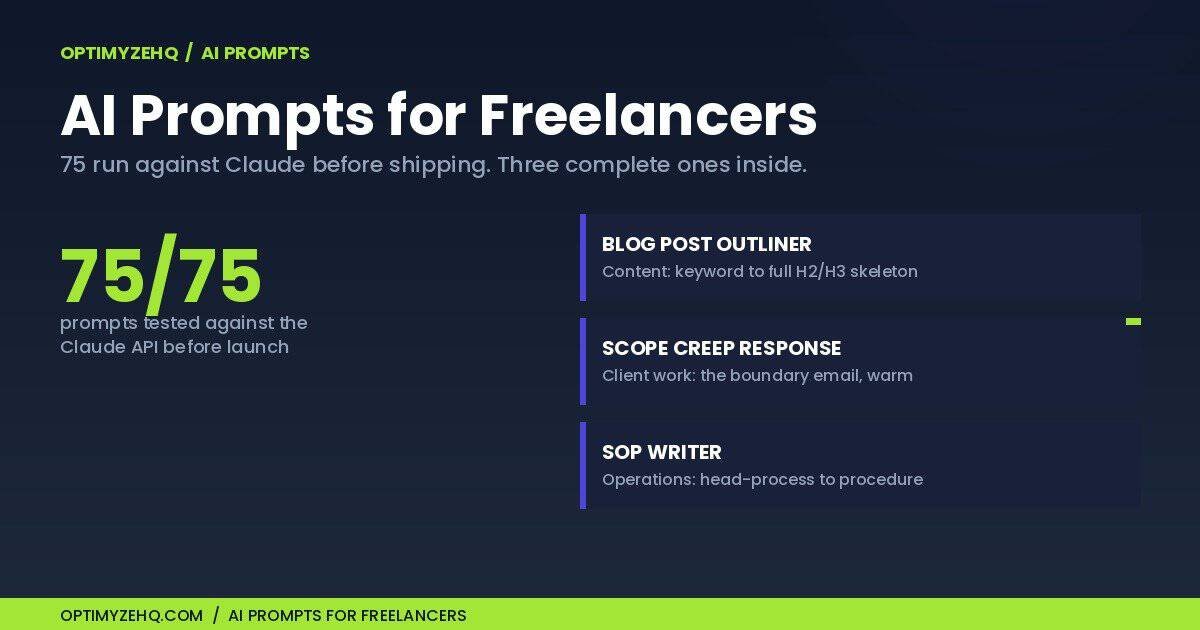
Before I sold a single prompt, I ran all 75 of them against the Claude API. Not skimmed. Not “reviewed.” Ran, with realistic inputs, checking each output against pass criteria I wrote down first. Three of the prompts that survived are in this post, complete, and you can run them today.
Here is the problem with most AI prompts for freelancers: they die in a bookmarks folder. You know the pattern, because you have probably bought or saved a pack like this: one-line prompts (“write a proposal for my client”), a wall of 50 or 100 of them, almost all about content, and a “battle-tested” claim with no test in sight. Meanwhile the work that actually eats a freelance week, the scope-creep reply, the payment chase, the process that lives only in your head, goes unprompted.
This post is for freelancers and solo creators who already use Claude or ChatGPT and are tired of retyping instructions from scratch. It covers how I tested a prompt library before shipping it, what 75 prompts look like when they cover a whole one-person business instead of a content calendar, and three complete prompts from the set: one for content, one for client work, one for operations.
How do you test a prompt before shipping it?
You run it the way a buyer would: with realistic inputs, against pass criteria you define before looking at the output.
Every prompt in the library follows the same fill-in-the-brackets system: a specific role for the AI, concrete rules, and [BRACKETED INPUTS] you replace with your own material. So for each of the 75, I wrote realistic stand-ins for those brackets and ran the filled prompt against Claude through the API. The scope-creep prompt got a real-shaped scenario: a five-page website copy project where the client asks for an email welcome sequence on top, “should be quick since you already know our voice now.” The SOP prompt got a deliberately messy process description, the kind that ends with “sometimes I forget the preview text.”
A pass was structural, not vibes. The outliner had to classify search intent and produce a full heading skeleton with word targets. The SOP writer had to flag gaps in my description instead of inventing steps to fill them. The proposal prompt had to produce every section it promises, in order.
The runs caught real problems. A syntax error hiding inside one prompt’s pro tip. One prompt that used a word on my own banned list (it said “revolutionary”; it doesn’t anymore). A few outputs that were technically fine but flat, which sent me back to tighten their rules. 75 of 75 passed before the library shipped, and none of them passed on charm.
None of this is exotic prompt engineering. It is the same role-rules-structure approach Anthropic’s own prompt engineering guide teaches, applied with a freelancer’s inputs and then actually verified.
What do 75 prompts cover when you run the business alone?
Everything that repeats. The library is organized in six categories:
- Content Creation (12): blog outlines, section drafts, newsletters, video scripts, case studies, FAQs
- Repurposing & Social (13): one blog post becomes a week of platform-native posts, threads, and carousels
- Client Work & Communication (13): proposals, scope docs, scope-creep replies, payment chasing, delivering bad news
- Sales, Offers & Marketing (12): sales page sections, launch sequences, objection handling, welcome emails
- Admin & Operations (12): SOPs, weekly reviews, decision matrices, time audits, contract clauses in plain English
- Research & Strategy (13): scored idea backlogs, keyword clusters, positioning options, offer validation interviews
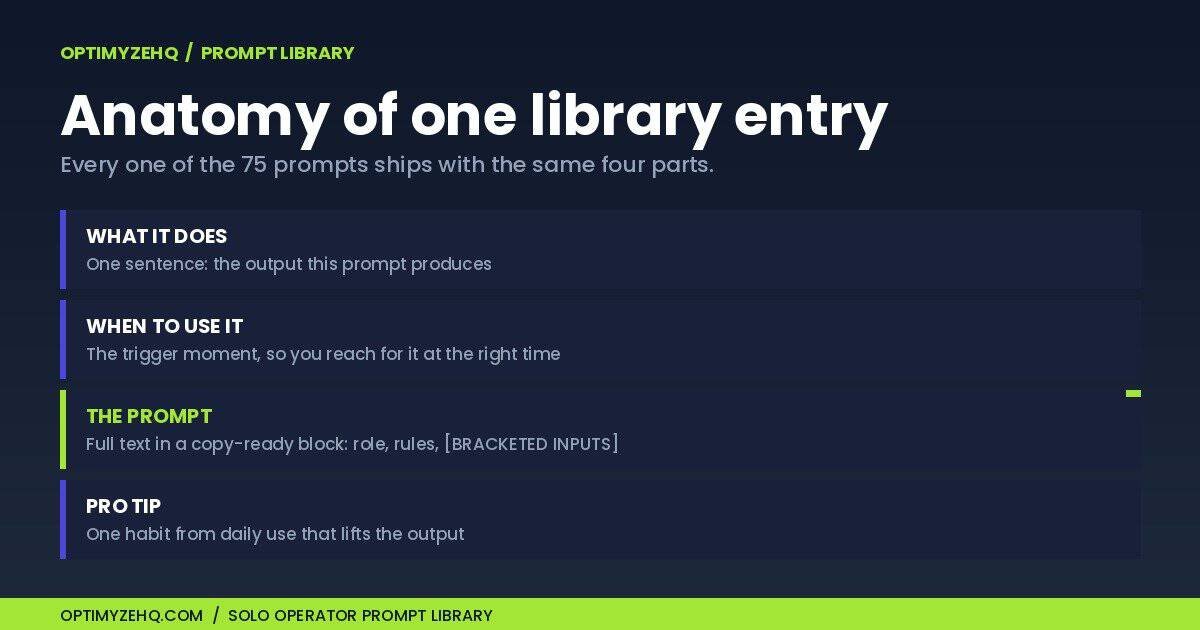
Every entry has the same anatomy: what the prompt does, when to reach for it, the full prompt in a copy-ready block, and a pro tip from use.
Five of the 75 are upgraded Pro versions of the Creator’s AI Starter Kit, a free five-prompt kit, so if you grabbed that, you already know the format. The other 70 go where the free kit does not: client work, sales, operations, and research.
Three AI prompts for freelancers, complete
One from content, one from client work, one from operations, deliberately, because “prompts for freelancers” should mean more than content prompts. No purchase needed to use these. Fill the brackets, paste into Claude or ChatGPT, edit what comes back.
1. The Blog Post Outliner (content)
Run this before drafting any post. It classifies the search intent behind your keyword, then builds the full skeleton so you write into a structure instead of toward a word count. Note the [VERIFY] rule: it marks where a statistic would be needed instead of inventing one, which is exactly the failure mode that makes AI drafts untrustworthy.
You are an SEO content strategist for solo creators who write their own blogs.

Build a complete outline for a blog post targeting this keyword:

[YOUR TARGET KEYWORD]

My audience: [YOUR AUDIENCE IN ONE SENTENCE]

Deliver, in this order:
1. Search intent: classify it (informational, commercial, transactional) and say what the reader wants to walk away with, in one sentence.
2. Three title options under 60 characters, each with the keyword and a number or concrete outcome.
3. The full outline: every H2 and H3, with a one-line note on what each section covers and a word target per H2.
4. Three FAQ candidates: the literal questions a beginner would type into a search bar about this topic.

Rules:
- Assume the reader is smart but new to the topic. Flag any section where a term needs a plain-English definition.
- Mark any section that would need a statistic with [VERIFY: find a primary source], never invent numbers.
- The outline must answer the search intent in the first third, not bury it.
In testing, I ran it with the keyword “ai workflows for freelancers” and a one-sentence audience. It came back with the intent classified, three sub-60-character titles, a complete H2/H3 skeleton with word targets, and FAQ candidates. Pro tip from the library: run it twice with two different audience sentences. The sections that survive both versions are your core; the ones that change are where your angle lives.
2. The Scope Creep Response Writer (client work)
The “while you’re at it, could you also…” email is where freelance margins go to die, because the work is small enough to feel rude refusing and large enough to be unpaid labor. This prompt drafts the reply that values the idea, names the boundary, and offers the paid path, without souring the relationship.
You are helping an independent freelancer answer a scope-expanding request without damaging the relationship.

Their request:

[PASTE THEIR REQUEST]

What the original scope covers: [WHAT THE ORIGINAL SCOPE SAYS]

Write the reply:
1. Receive the idea well: one genuine sentence about why the request makes sense for their goals.
2. Name the boundary neutrally: this sits outside what we scoped, referencing the scope doc as the shared map ("looking at our scope doc, this falls outside the X we agreed").
3. Offer the paid path: I would be glad to do it, here is the rough size (small addition / its own mini-project), and the next step to green-light it ("I can send a quick quote today").
4. Protect the current project: one line confirming the original timeline continues unaffected either way.

Rules:
- Warm throughout. The enemy is drift, not the client.
- Never apologize for having a scope. No "unfortunately", no "I'm afraid".
- Under 150 words.
- If their request is ambiguous enough that it MIGHT be in scope, the reply should ask the one clarifying question that settles it instead of asserting.
In the test run (website project, client asking for a welcome email sequence on top), the reply praised the idea, then drew the line exactly where it should: “Looking at our scope doc, email copy isn’t included in the five-page website project, so this would be its own piece of work.” It sized the add-on, offered a same-day quote, and confirmed the original timeline, all under 150 words. Pro tip from the library: the phrase “looking at our scope doc” does the heavy lifting. It makes the document the boundary-keeper so you do not have to be.
3. The SOP Writer (operations)
The process that lives in your head does not survive your vacation. This prompt turns a rough description into a standard operating procedure with a trigger, numbered steps, failure points, and a done definition. Two rules make it work: it writes for a capable stranger covering for you, and where your description has a hole, it writes [GAP: what is missing] instead of inventing a step.
You are an operations writer creating SOPs for a one-person business.

The process:

[DESCRIBE THE PROCESS, ROUGH IS FINE]

How often it runs: [HOW OFTEN AND WHEN IT RUNS]

Write the SOP:
1. Header: name, purpose in one line, trigger (what event or date starts it), time it takes, tools and accounts needed.
2. Numbered steps. For each: one imperative action sentence, the tool or location in parentheses, and the expected result ("you should now see..."). Include logins, saves, and confirmations; the steps experts skip are the steps that break.
3. Failure points: the 3 most likely places this goes wrong and the check or fix for each.
4. Done definition: how to know the process completed correctly, as a checklist.

Rules:
- Write for a capable stranger covering for me, not for me. Zero context assumed.
- One action per step.
- Where my description has a gap, write [GAP: what is missing] instead of inventing a step.
- Flag any step that a tool like Make.com, Zapier, or a Notion automation could take over, marked [AUTOMATE CANDIDATE].
I tested it with that messy newsletter-publishing description, forgotten preview text and all. The output opened with the trigger (every Monday, start by 9 AM), an honest time estimate, numbered steps with expected results, and where my description left a hole it wrote [GAP: provide login credentials or confirm SSO access] rather than making something up. Pro tip from the library: the [AUTOMATE CANDIDATE] flags compound. After five SOPs, the flags across them are your automation roadmap, pre-prioritized by frequency. When you are ready to act on those flags, that is workflow territory, and it is exactly how I run a one-person business on AI workflows.
What this library isn’t
It is not 500 prompts. It is 75 curated ones, and the count stayed at 75 precisely because everything that did not earn its place got cut.
It is not automation. These are prompts you run by hand, in the chat interface you already use. If you want the machine to run itself, drafting and repurposing without you in the loop, that is what the Creator Content Engine does, a paid Make-and-Notion system, and the prompting approach behind it is the same one I described in the prompting system every OptimyzeHQ automation runs on.
From prompt to skill: when a prompt becomes something you run every week, install it as a skill so Claude reaches for it on its own. Here is how to create a Claude Skill.
And it is not a substitute for your judgment. Every output above was a strong draft, not a finished deliverable. You edit, you decide, you send.
The full library
The three prompts above are yours either way. The full set is the Solo Operator Prompt Library: 75 tested prompts in a duplicatable Notion workspace, six category views, every entry with the anatomy you saw here. It costs $37 one-time as of June 2026, arrives by email within minutes, and carries a 30-day refund policy. The details and FAQ are on the Solo Operator Prompt Library page.
If you want to try the format before spending anything, start with the free Starter Kit’s five prompts, or with the three above. Run the Scope Creep Response Writer the next time a “while you’re at it” email lands. That one prompt pays for the habit. And if repurposing is your bottleneck, the 4-hour weekly repurposing system shows where prompts like these slot into a full content week.
Zoom out: Prompts are one surface of five. The Claude AI for solopreneurs pillar maps chat, Projects, connectors, Cowork, and the API, and which jobs belong where.